With the release of Windows 10 version 2004, the following tool to support this latest Windows 10 build, Windows Assessment and Deployment Kit (ADK) version 2004 is now available. You can download it from: Windows 10 Assessment and Deployment Kit (ADK).
NOTE: There is a change with this ADK which requires an add-on installation to include Windows PE.
Starting with Windows 10, version 1809, Windows Preinstallation Environment (PE) is released separately from the Assessment and Deployment Kit (ADK). To add Windows PE to your ADK installation, download the Windows PE Addon and run the included installer after installing the ADK. This change enables post-RTM updates to tools in the ADK. After running the installer for the WinPE add-on, the WinPE files will be in the same location as they were in previous installs of the ADK.
The Windows ADK is also available to Windows Insiders. Join the Windows Insider Program to get the Windows ADK Insider Preview.
The latest version of the Windows ADK includes:
Windows Performance Recorder (WPR)
New SkipPDBGen Option – During WPR stop, you can now specify in the command line the ability to skip generation of PDBs (NGen & Embedded) to help reduce trace stop time.
I recently switched to using my new-ish laptop (Lenovo P1) for my day-to-day technical work and decided I should redo my test lab in Hyper-V, particularly for my ConfigMgr / MEMCM / Intune testing and troubleshooting stuff. While I have been actively using my ConfigMgr site in my lab, I didn’t pay much attention to the built-in reports until very recently, when I discovered I had an issue as all the reports produced an error.
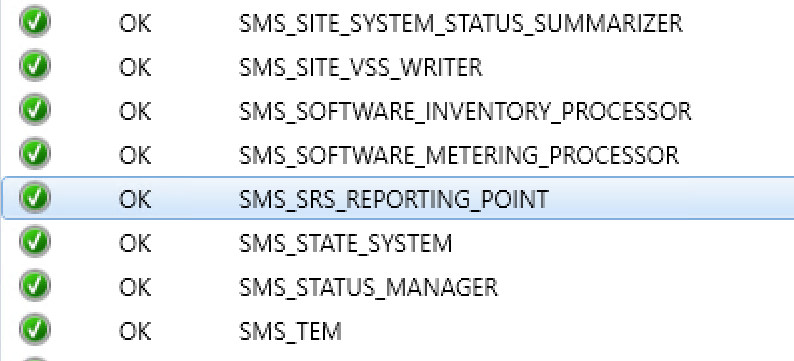
The Component Status in the Monitoring node of the ConfigMgr console indicated no issues with the Reporting Services Point Role.
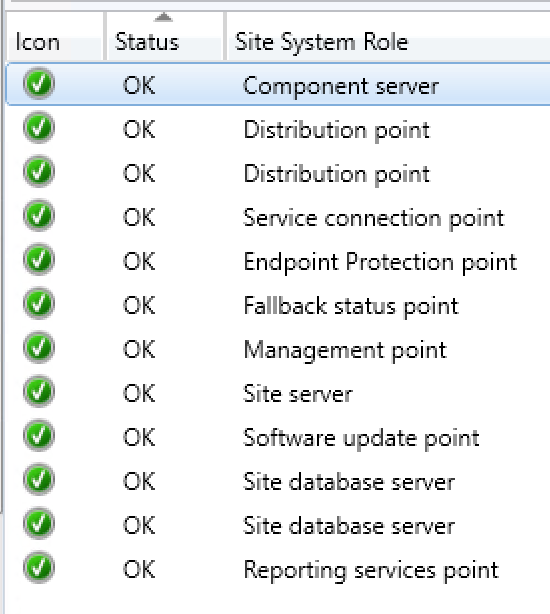
The Site Status was lit up nice and green and indicated all was working fine with my ConfigMgr site.
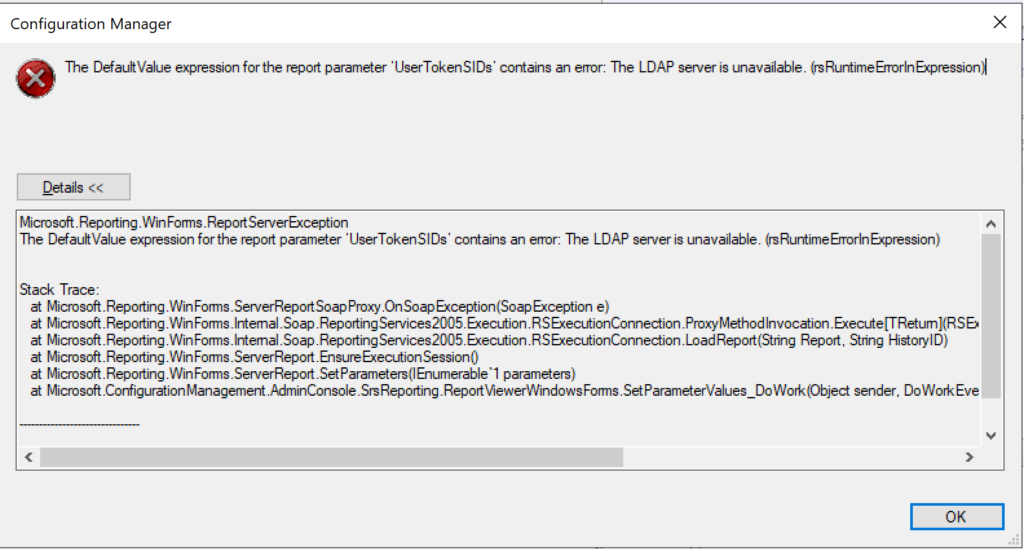
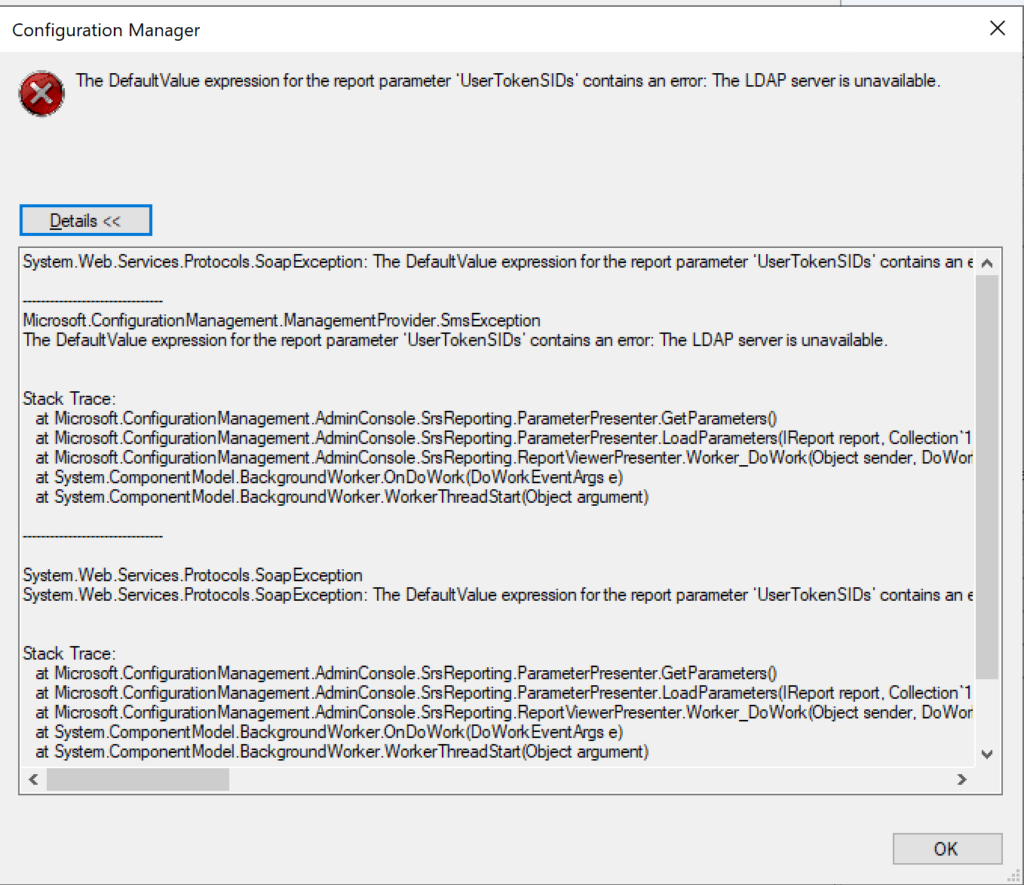
When a report is run from the ConfigMgr console or SSRS, the following error is produced (see image above):
The DefaultValue expression for the report parameter ‘UserTokenSIDs’ contains an error: The LDAP server is unavailable. (rsRuntimeErrorInExpression)
The full error is provided below:
System.Web.Services.Protocols.SoapException: The DefaultValue expression for the report parameter ‘UserTokenSIDs’ contains an error: The LDAP server is unavailable. at Microsoft.ReportingServices.Library.ReportingService2005Impl.GetReportParameters(String Report, String HistoryID, Boolean ForRendering, ParameterValue[] Values, DataSourceCredentials[] Credentials, ParameterInfoCollection& Parameters) at Microsoft.ReportingServices.WebServer.ReportingService2005.GetReportParameters(String Report, String HistoryID, Boolean ForRendering, ParameterValue[] Values, DataSourceCredentials[] Credentials, ReportParameter[]& Parameters)
Microsoft.ConfigurationManagement.ManagementProvider.SmsException The DefaultValue expression for the report parameter ‘UserTokenSIDs’ contains an error: The LDAP server is unavailable.
Stack Trace: at Microsoft.ConfigurationManagement.AdminConsole.SrsReporting.ParameterPresenter.GetParameters() at Microsoft.ConfigurationManagement.AdminConsole.SrsReporting.ParameterPresenter.LoadParameters(IReport report, Collection`1 navigationParameters, IResultObject resultObject) at Microsoft.ConfigurationManagement.AdminConsole.SrsReporting.ReportViewerPresenter.Worker_DoWork(Object sender, DoWorkEventArgs e) at System.ComponentModel.BackgroundWorker.OnDoWork(DoWorkEventArgs e) at System.ComponentModel.BackgroundWorker.WorkerThreadStart(Object argument)
I tried several troubleshooting steps including the following:
1. Uninstalled the Reporting role from ConfigMgr 2. Uninstalled the SQL Reporting Services 3. Reinstalled SQL Reporting Services 4. Reinstalled the Reporting role in ConfigMgr 5. Changed the registry key: “HKEY_LOCAL_MACHINE/SOFTWARE/Wow6432Node/Microsoft/ConfigMgr10/ AdminUI/Reporting/ReportBuilderApplicationManifestName” from the value “ReportBuilder_2_0_0_0.application” to “ReportBuilder_3_0_0_0.application” 6. Edited the file: “C:\Program Files (x86)\Microsoft Configuration Manager\AdminConsole\bin\Microsoft.ConfigurationManagement.exe.config” and changed the 2 to a 3 in the two locations: <add key=”10.0″ value=”ReportBuilder_3_0_0_0.application”/> <add key=”DEFAULT” value=”ReportBuilder_3_0_0_0.application”/> 7. Checked accounts including the service account for SQL reporting
None of the above steps helped fix the UserTokenSIDs issue. I searched high and low on Google / Bing and did not discover anything regarding “LDAP server is unavailable” specifically relating to UserTokenSIDs. I finally got the big guns out and contacted my close friend, Garth Jones, who is a known industry expert with SQL and SSRS. He is a Microsoft MVP and also owns a company called Enhansoft which provides a subscription service for all things reports, which extends the reporting capabilities in ConfigMgr. Enhansoft also provides a free report as a giveaway each month.
RESOLUTION:
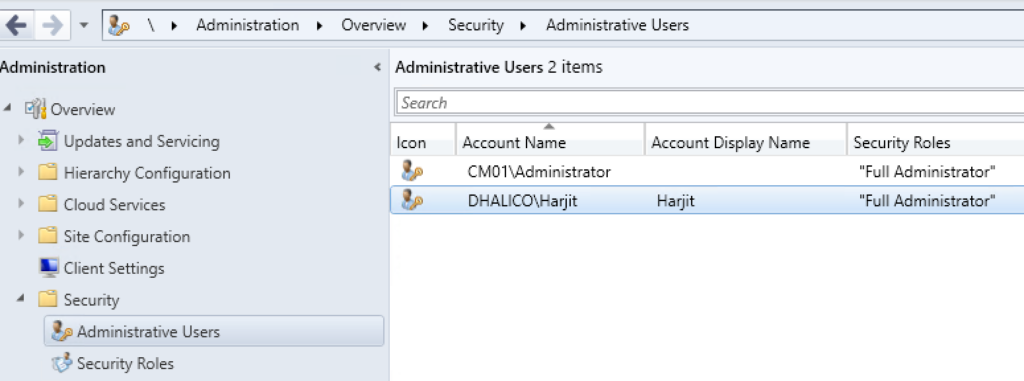
With Garth’s help, the issue was quickly discovered and fixed quite easily. Bottom line is that I was using a local administrator account (CM01\Administrator) to login to my ConfigMgr server as opposed to using a Domain account (Dhalico\Harjit) with the necessary privileges. FYI, “Dhalico” is my domain. 1. Added the Dhalico\Harjit account in the ConfigMgr console under Administration > Overview > Security > Administrative Users (see image below) 2. Provided “Full Administrator” security role 3. Logged on to the ConfigMgr server as “Harjit” and tested running reports 4. Success! And Thank you Garth! 🙂
The installation of the ConfigMgr client on workstations and servers is pretty straight forward, and can be done manually, with Client Push, and Software Update Based client installation to name a few. However, it is not as simple when dealing with Windows VDI systems, where extra steps need to be taken to avoid duplicate ConfigMgr client GUIDs and certificates on cloned VDI systems. Below are the steps to follow.
On the master or template system:
Install the ConfigMgr client. Ensure it is properly functioning and has all the necessary components and actions.
Stop the SMS Host Service. This can be done by launching the Command Prompt (CMD) as Administrator and running the following command: net stop ccmexec
Delete the SMSCFG.ini file from the Windows folder location. In Administrator CMD, run the following command: del %WINDIR%\SMSCFG.ini
Delete the SMS Certificates. To do this, launch PowerShell as Administrator and run the following command: Remove-Item -Path HKLM:\Software\Microsoft\SystemCertificates\SMS\Certificates\* -Force
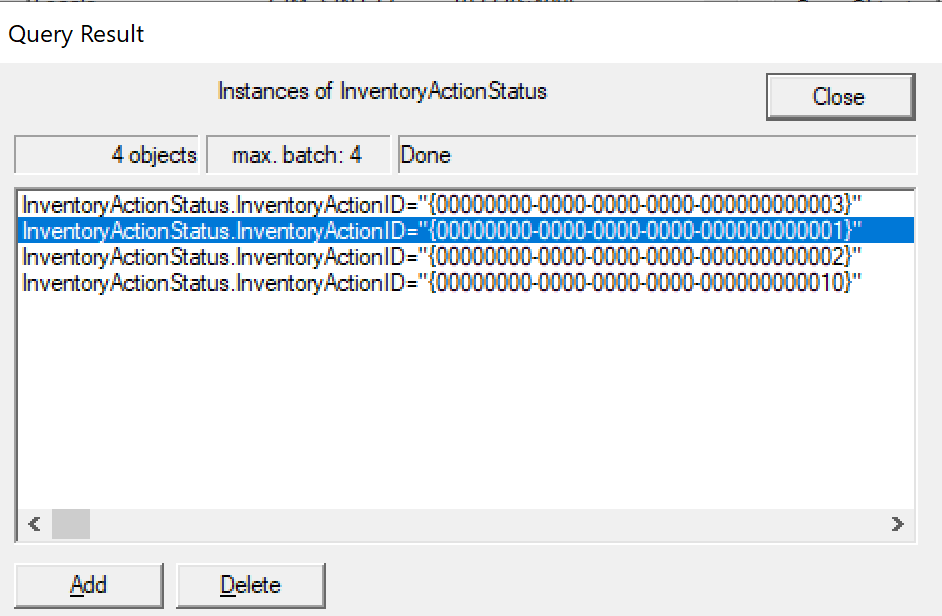
Remove the Inventory Action ID 1 in WMI. You can run the following command: wmic /namespace:\root\ccm\invagt path inventoryActionStatus where InventoryActionID=”{00000000-0000-0000-0000-000000000001}” DELETE /NOINTERACTIVE
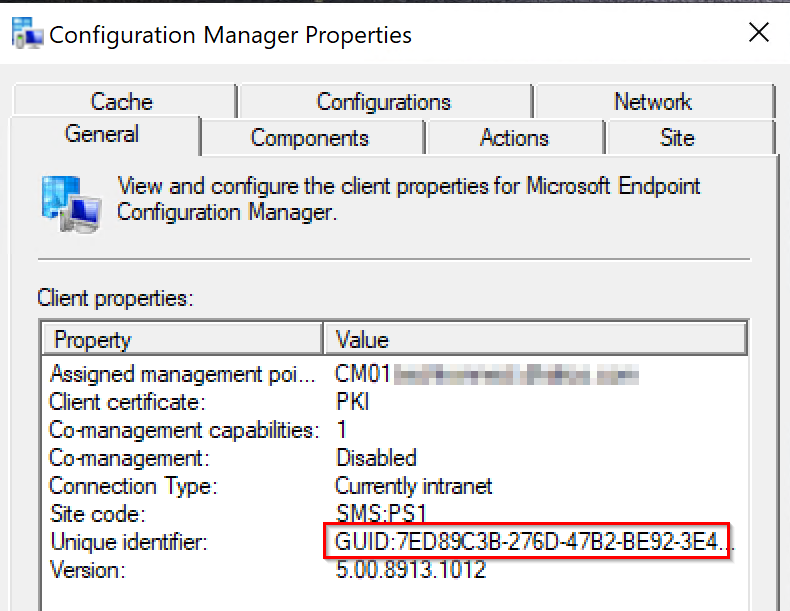
Once the above steps have been completed, shutdown the master template, capture a snapshot, and provision the VDI systems. At this point, each VDI system will generate a unique ConfigMgr GUID and will function as expected.
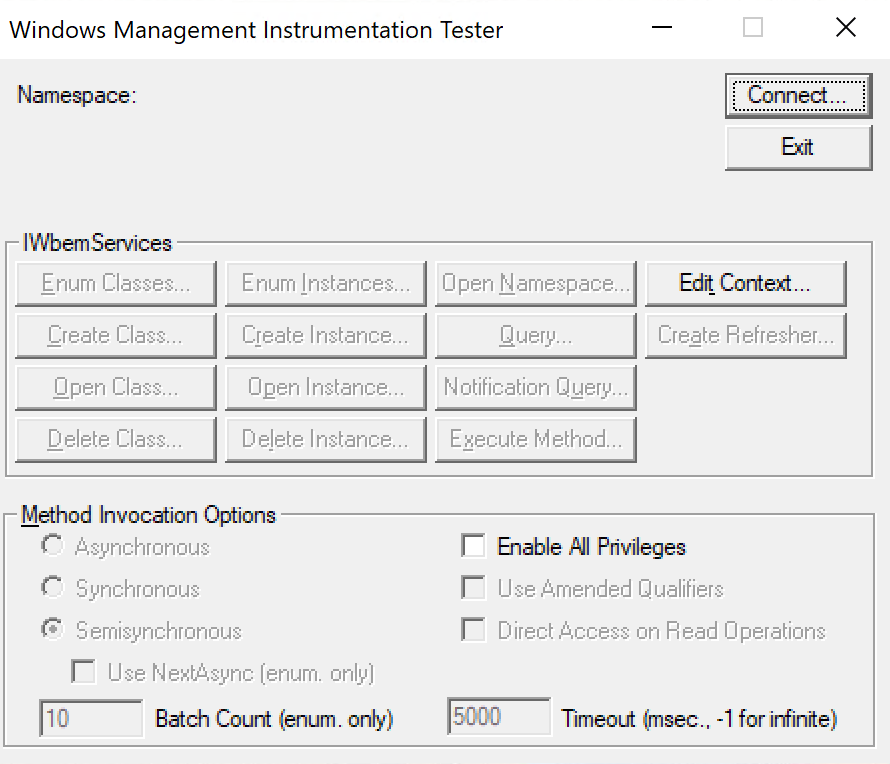
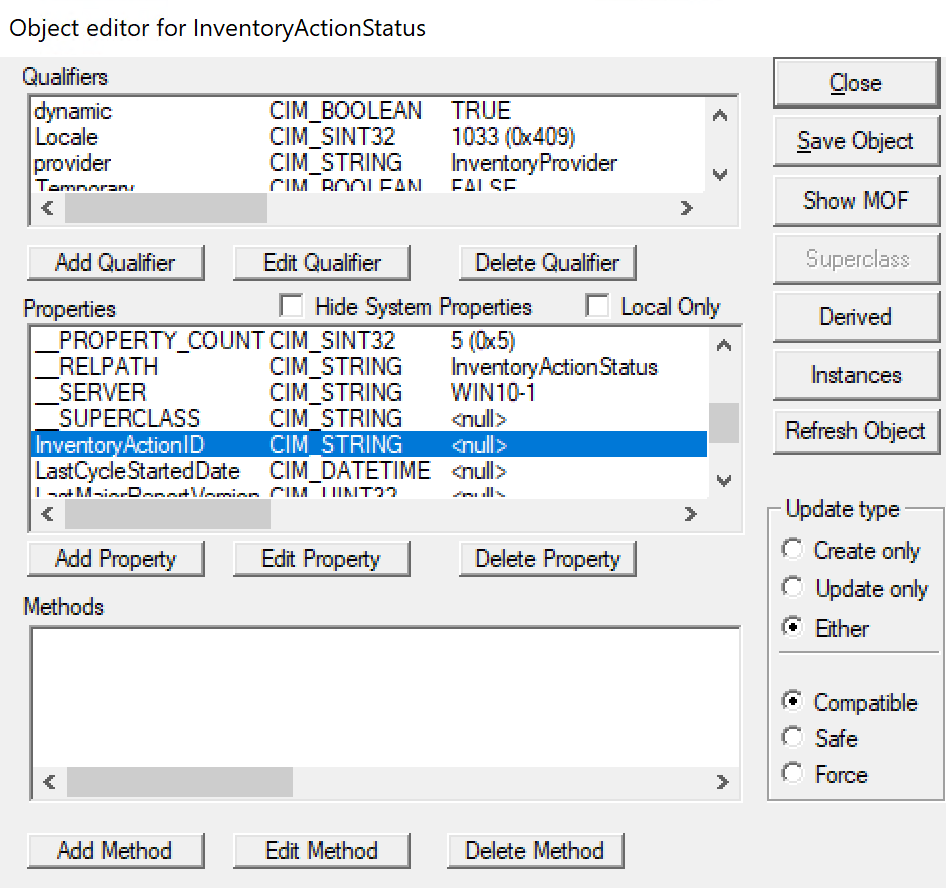
For step number 5, this can be achieved by using the wbemtest tool with the following steps:
Launch wbemtest as Administrator
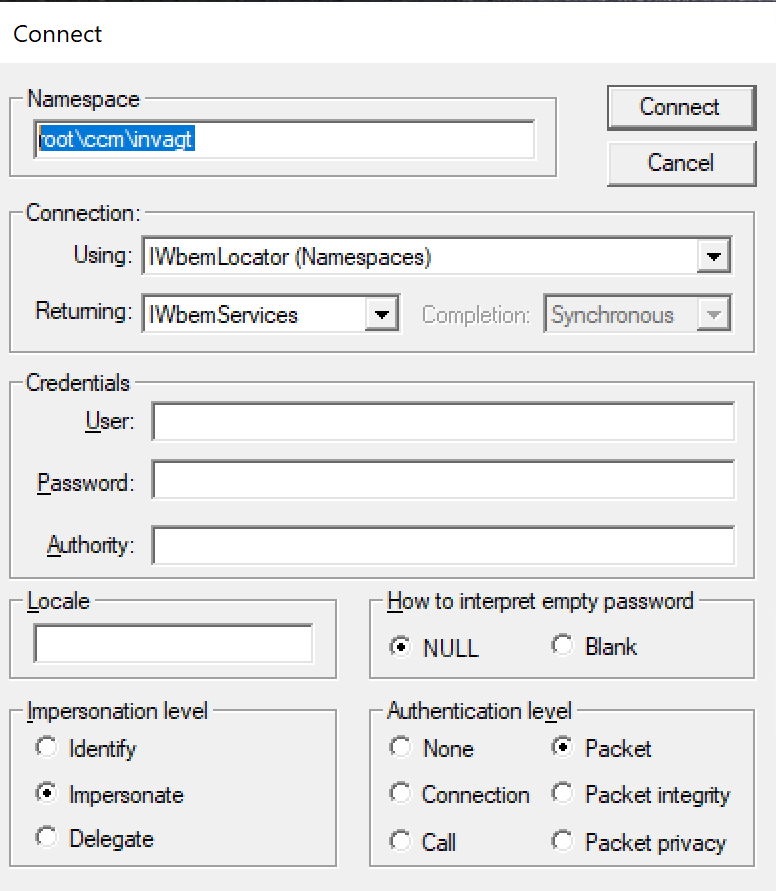
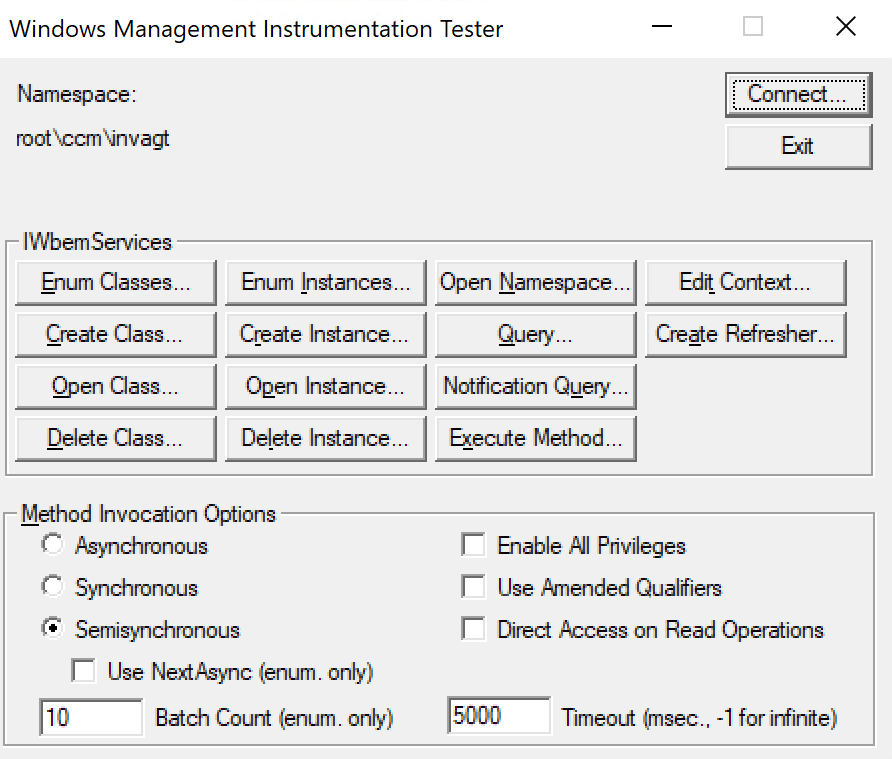
Click Connect
Change the Namespace field as root\ccm\invagt, and click Connect
Click on Enum Classes
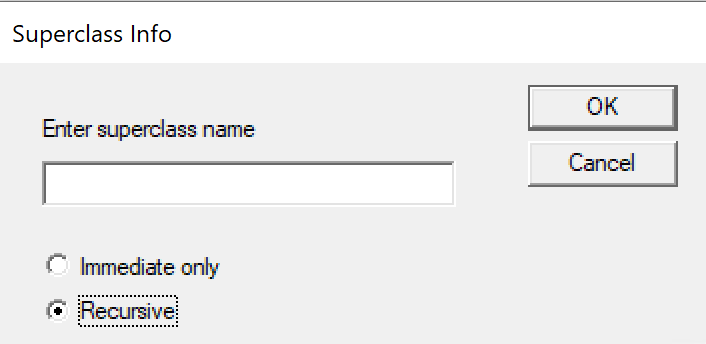
Select Recursive and click Ok
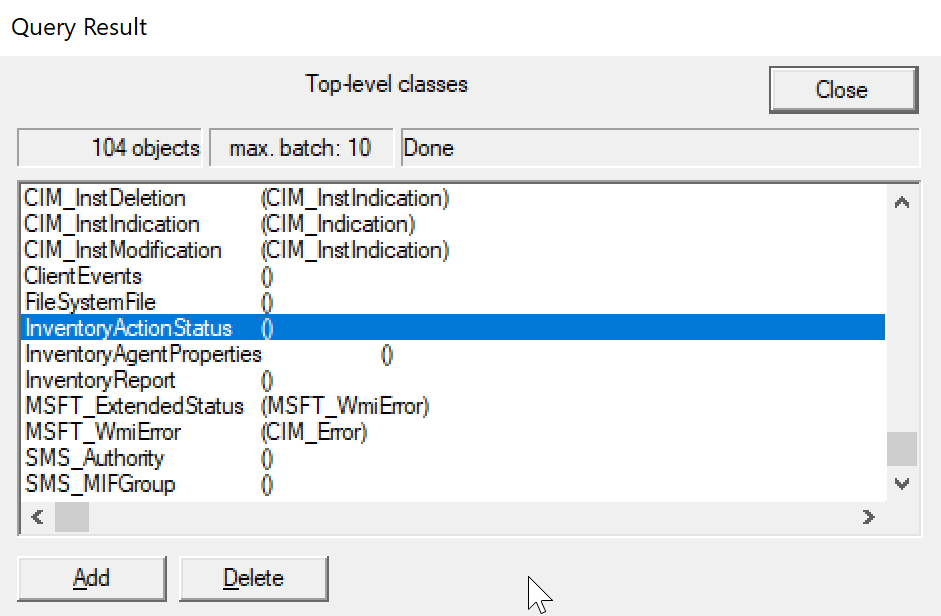
Scroll down and locate InventoryActionStatus, and double click
Click on the Instances button
Select the Inventory GUID and click Delete
Cookie Consent
We use cookies to improve your experience on our site. By using our site, you consent to cookies.
Used to monitor number of Google Analytics server requests when using Google Tag Manager
1 minute
_gid
ID used to identify users for 24 hours after last activity
24 hours
_ga_
ID used to identify users
2 years
_gali
Used by Google Analytics to determine which links on a page are being clicked
30 seconds
_ga
ID used to identify users
2 years
__utmx
Used to determine whether a user is included in an A / B or Multivariate test.
18 months
__utmv
Contains custom information set by the web developer via the _setCustomVar method in Google Analytics. This cookie is updated every time new data is sent to the Google Analytics server.
2 years after last activity
__utmz
Contains information about the traffic source or campaign that directed user to the website. The cookie is set when the GA.js javascript is loaded and updated when data is sent to the Google Anaytics server
6 months after last activity
__utmc
Used only with old Urchin versions of Google Analytics and not with GA.js. Was used to distinguish between new sessions and visits at the end of a session.
End of session (browser)
__utmb
Used to distinguish new sessions and visits. This cookie is set when the GA.js javascript library is loaded and there is no existing __utmb cookie. The cookie is updated every time data is sent to the Google Analytics server.
30 minutes after last activity
__utmt
Used to monitor number of Google Analytics server requests
10 minutes
__utma
ID used to identify users and sessions
2 years after last activity
_gac_
Contains information related to marketing campaigns of the user. These are shared with Google AdWords / Google Ads when the Google Ads and Google Analytics accounts are linked together.
90 days
Clarity is a web analytics service that tracks and reports website traffic.
Used to detect if the visitor has accepted the marketing category in the cookie banner. This cookie is necessary for GDPR-compliance of the website.
179 days
LOGIN_INFO
This cookie is used to play YouTube videos embedded on the website.
2 years
YSC
Registers a unique ID to keep statistics of what videos from YouTube the user has seen.
Session
PREF
This cookie stores your preferences and other information, in particular preferred language, how many search results you wish to be shown on your page, and whether or not you wish to have Google’s SafeSearch filter turned on.
10 years from set/ update
GPS
Registers a unique ID on mobile devices to enable tracking based on geographical GPS location.
1 day
VISITOR_INFO1_LIVE
Tries to estimate the users' bandwidth on pages with integrated YouTube videos. Also used for marketing