Starting January 14, 2020, Microsoft will no longer provide security updates, software updates and technical support for computers running Windows 7. Start upgrading the Windows 7 computers in your organizations or in your homes to Windows 10 ASAP.
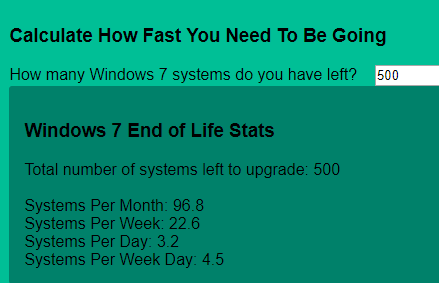
This website, Windows 7 End of Life provides a nice countdown along with a calculator to determine how many computers you will need to upgrade per month, per week, or per day given the number of Windows 7 computers you have left to upgrade.
Nash Pherson, the creator of the Win 7 End of Life website also provides a nice PowerShell script to find all the Windows 7 computer objects remaining in your Active Directory. Great resource, Thanks Nash!
This is the Windows Lifecycle Fact Sheet for every Windows product available, which provides information for support timelines and more.
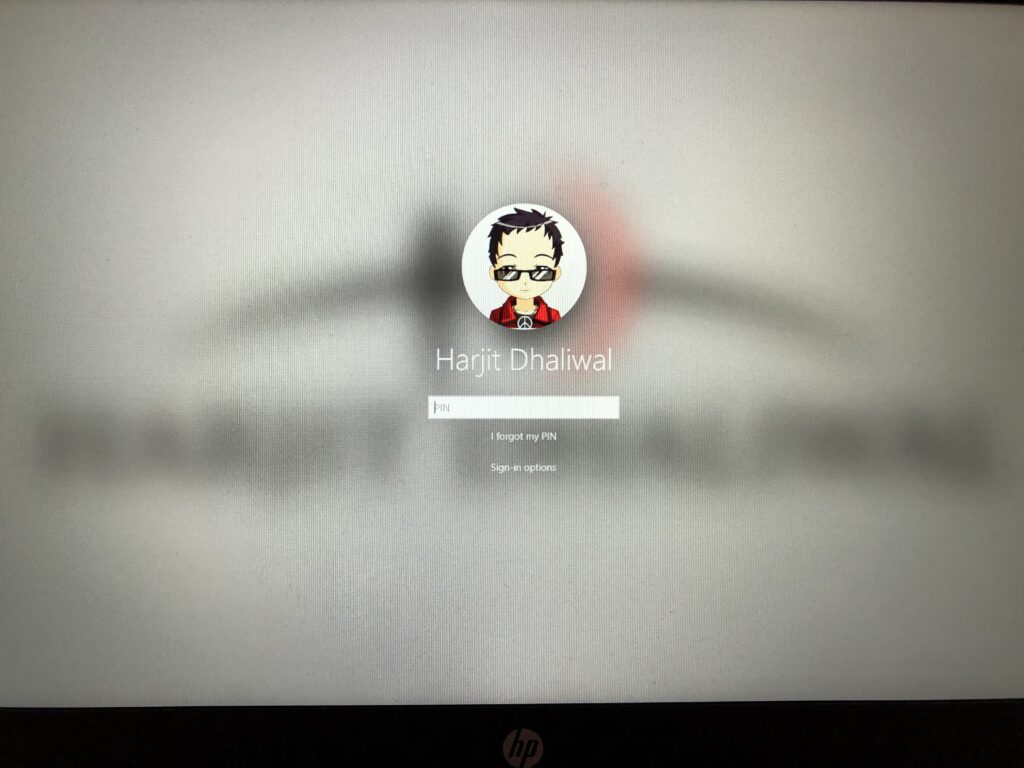
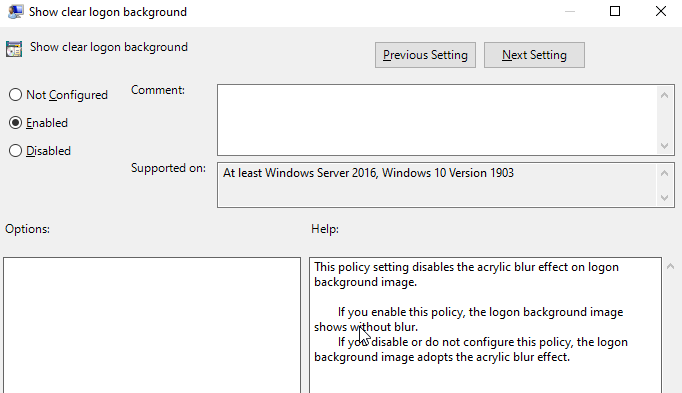
Starting with Windows 10 “19H1” or build 18237, you have likely encountered a blurred background on the login screen. Some users like this feature and some don’t. If you’d like to change the blurred effect to a clear image, then you can do it in two ways: 1. Group Policy or Local Policy 2. Registry setting
Change using Group Policy or Local Policy:
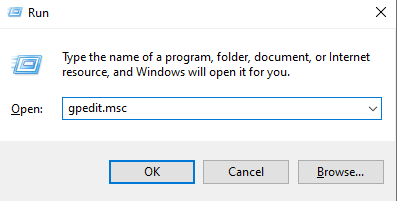
Launch the Group Policy Editor > gpedit.msc
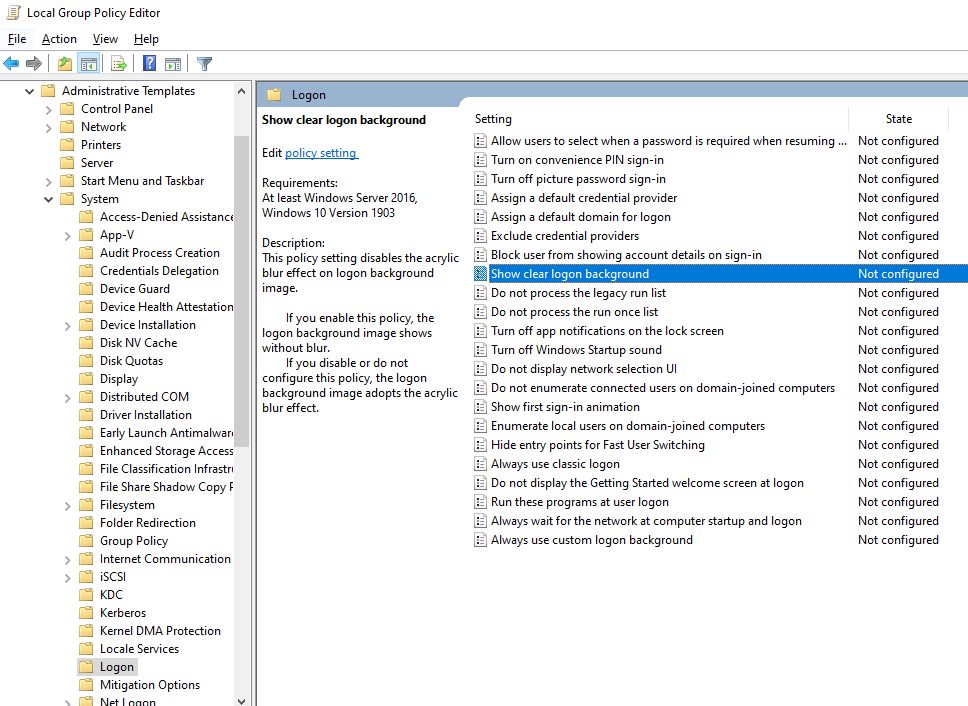
In Group Policy Editor, go to: Computer Configuration\Administrative Templates\System\Logon
Enable the policy option: Show clear logon background
Restart the computer for good measure
Change using Registry setting:
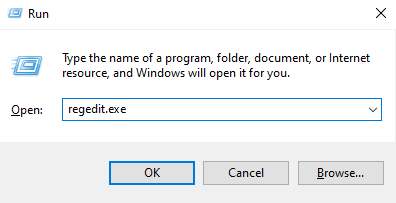
Launch the Registry editor (make sure you backup the registry prior to making any changes) > regedit.exe
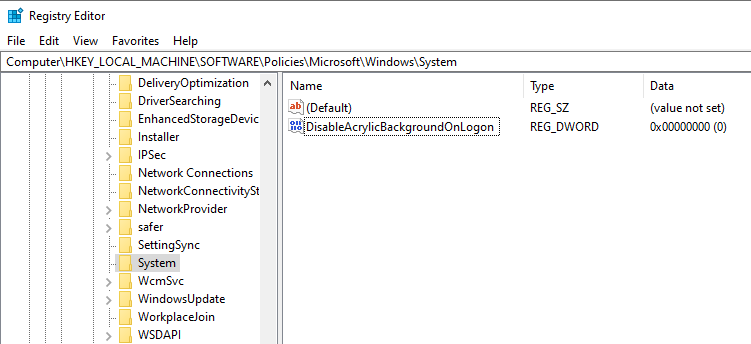
Go to: HKEY_LOCAL_MACHINE\SOFTWARE\Policies\Microsoft\Windows\System
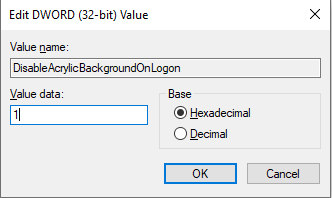
Create a new DWORD (32-bit) value: DisableAcrylicBackgroundOnLogon
Set the Value data to 1 to disable the blur effect on the login screen
Restart the computer
Now, you should have a clear login screen background.
Bulb Mode is a shutter speed option which can be used in Manual setting to capture subjects in long exposures such as fireworks, trailing lights, night sky, light painting, and other creative photo captures. In general, DSLR cameras limit shutter speed captures to a maximum of 30 seconds which can be limiting or too much depending on what subject is being captured. Using Bulb Mode, a photographer has the ability to control how long the shutter needs to stay open by pressing down on the shutter and then releasing for the desired exposure required for a particular shot.
On my Nikon DSLR cameras such as the D700, the Bulb option was straight forward to find under the Manual setting and scrolling the wheel for the shutter speed until the screen displayed “BULB”. On my Sony A6500 camera, I had difficulty locating Bulb Mode, with the maximum option of only 30 seconds available. I then realized that I had to change a few other settings which I had configured from the factory settings in order to activate Bulb mode.
If you are using the following settings below, you will not be able to set the shuttle speed to Bulb mode. In this case, the shutter speed will be limited to 30 seconds.
Smile Shutter
Auto HDR
Picture Effect is set to HDR Painting or Rich-tone Mono
Multi Frame NR
When Drive Mode is set to the following:
Cont. Shooting
Self-timer (Cont)
Cont. Bracket
Silent Shooting
Once you have reset the above settings, follow these steps to use Bulb mode on your Sony A6500 camera:
Set the mode dial to M (Manual Exposure).
Turn the control wheel counterclockwise until [BULB] is indicated.
Set the aperture value (F-value) by turning the control dial.
Press the shutter button halfway down to focus.
Press and hold the shutter button for the duration of the shot. The shutter will remain open as long as the shutter button is pressed.
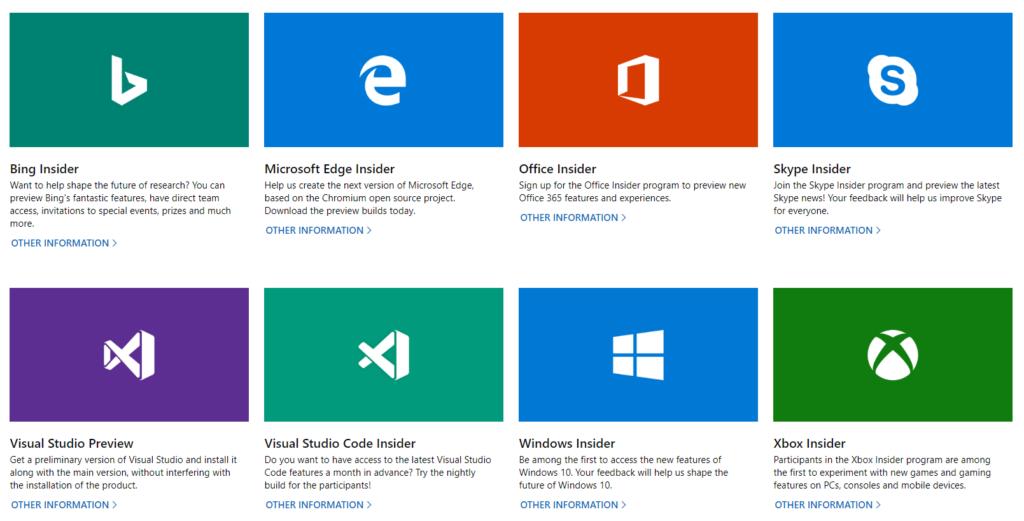
Microsoft provides several Insider programs which you can participate to get a preview of the latest features and updates, as well as provide feedback to Microsoft for bugs, issues, and request features.
In case you are trying to figure out what Insider programs are available and how you can sign up to participate, see below for the individual programs.
Used to monitor number of Google Analytics server requests when using Google Tag Manager
1 minute
_gid
ID used to identify users for 24 hours after last activity
24 hours
_ga_
ID used to identify users
2 years
_gali
Used by Google Analytics to determine which links on a page are being clicked
30 seconds
_ga
ID used to identify users
2 years
__utmx
Used to determine whether a user is included in an A / B or Multivariate test.
18 months
__utmv
Contains custom information set by the web developer via the _setCustomVar method in Google Analytics. This cookie is updated every time new data is sent to the Google Analytics server.
2 years after last activity
__utmz
Contains information about the traffic source or campaign that directed user to the website. The cookie is set when the GA.js javascript is loaded and updated when data is sent to the Google Anaytics server
6 months after last activity
__utmc
Used only with old Urchin versions of Google Analytics and not with GA.js. Was used to distinguish between new sessions and visits at the end of a session.
End of session (browser)
__utmb
Used to distinguish new sessions and visits. This cookie is set when the GA.js javascript library is loaded and there is no existing __utmb cookie. The cookie is updated every time data is sent to the Google Analytics server.
30 minutes after last activity
__utmt
Used to monitor number of Google Analytics server requests
10 minutes
__utma
ID used to identify users and sessions
2 years after last activity
_gac_
Contains information related to marketing campaigns of the user. These are shared with Google AdWords / Google Ads when the Google Ads and Google Analytics accounts are linked together.
90 days
Clarity is a web analytics service that tracks and reports website traffic.
Used to detect if the visitor has accepted the marketing category in the cookie banner. This cookie is necessary for GDPR-compliance of the website.
179 days
LOGIN_INFO
This cookie is used to play YouTube videos embedded on the website.
2 years
YSC
Registers a unique ID to keep statistics of what videos from YouTube the user has seen.
Session
PREF
This cookie stores your preferences and other information, in particular preferred language, how many search results you wish to be shown on your page, and whether or not you wish to have Google’s SafeSearch filter turned on.
10 years from set/ update
GPS
Registers a unique ID on mobile devices to enable tracking based on geographical GPS location.
1 day
VISITOR_INFO1_LIVE
Tries to estimate the users' bandwidth on pages with integrated YouTube videos. Also used for marketing