CONFIGMGR
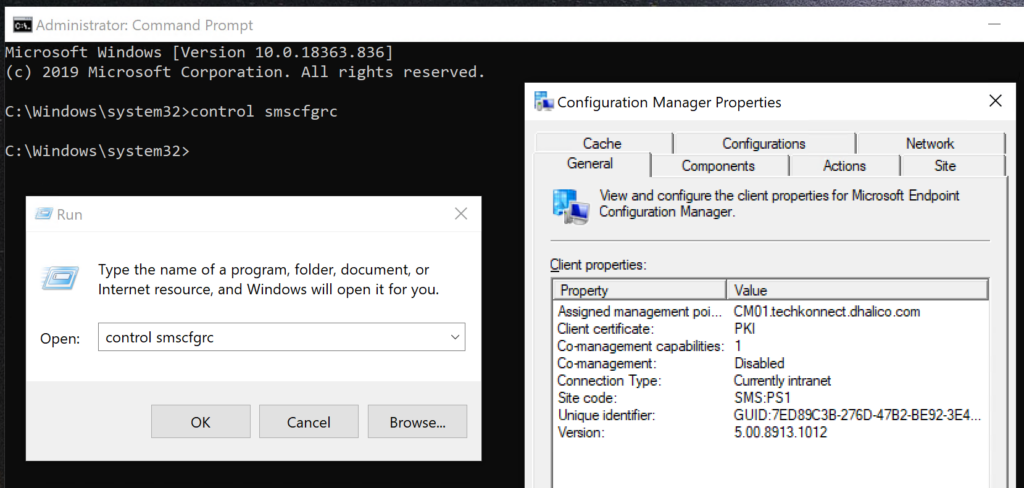
To launch the ConfigMgr applet from Control Panel, run the following in Run Command or in Command Prompt: Control SMScfgrc
WINDOWS
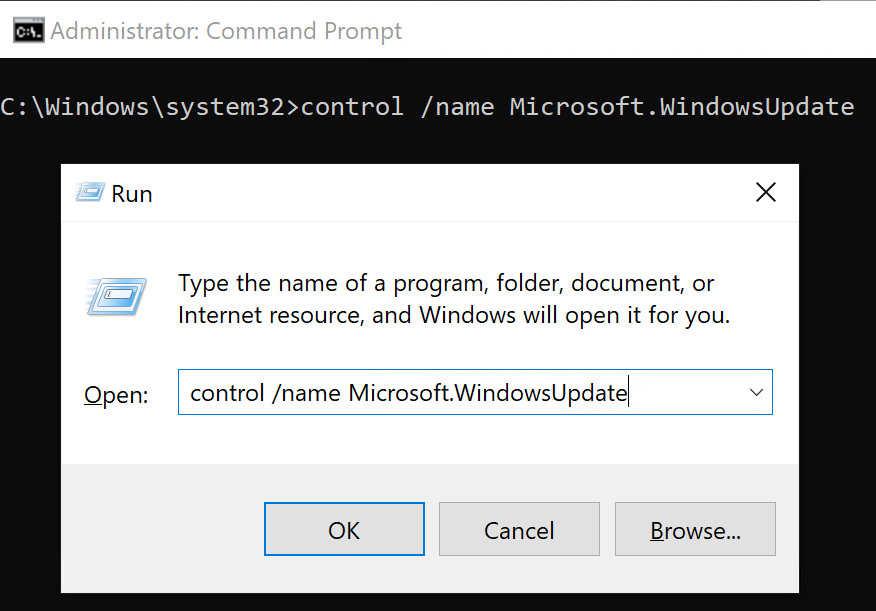
Launch Windows Updates: control /name Microsoft.WindowsUpdate
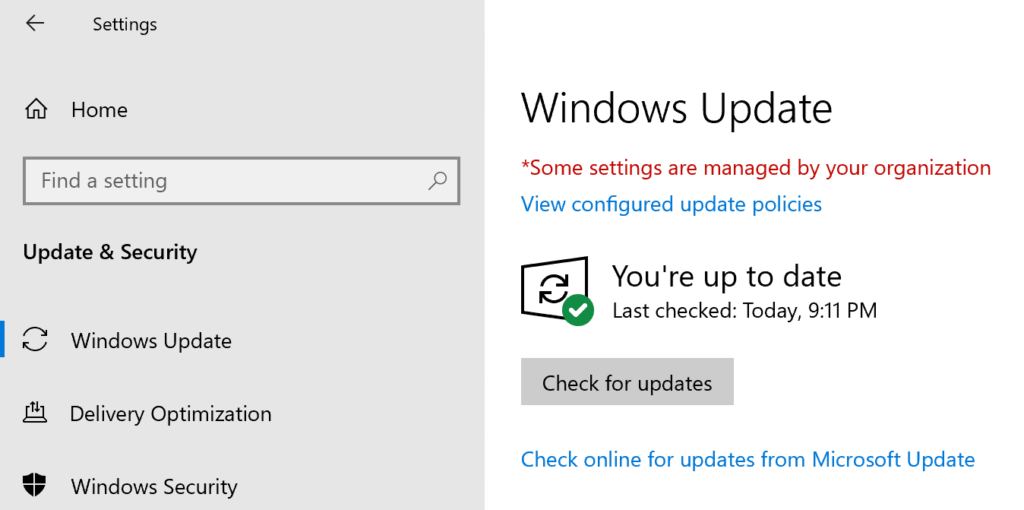
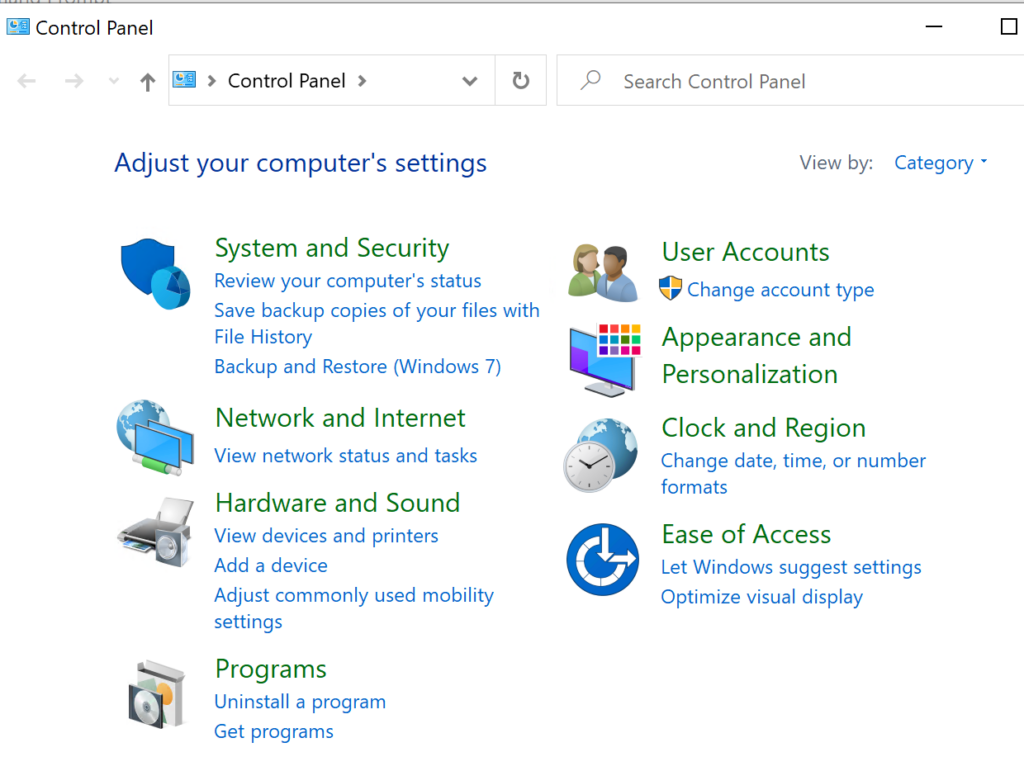
Launch Control Panel: control
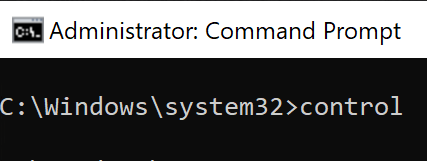
To launch the ConfigMgr applet from Control Panel, run the following in Run Command or in Command Prompt: Control SMScfgrc
Launch Windows Updates: control /name Microsoft.WindowsUpdate
Launch Control Panel: control
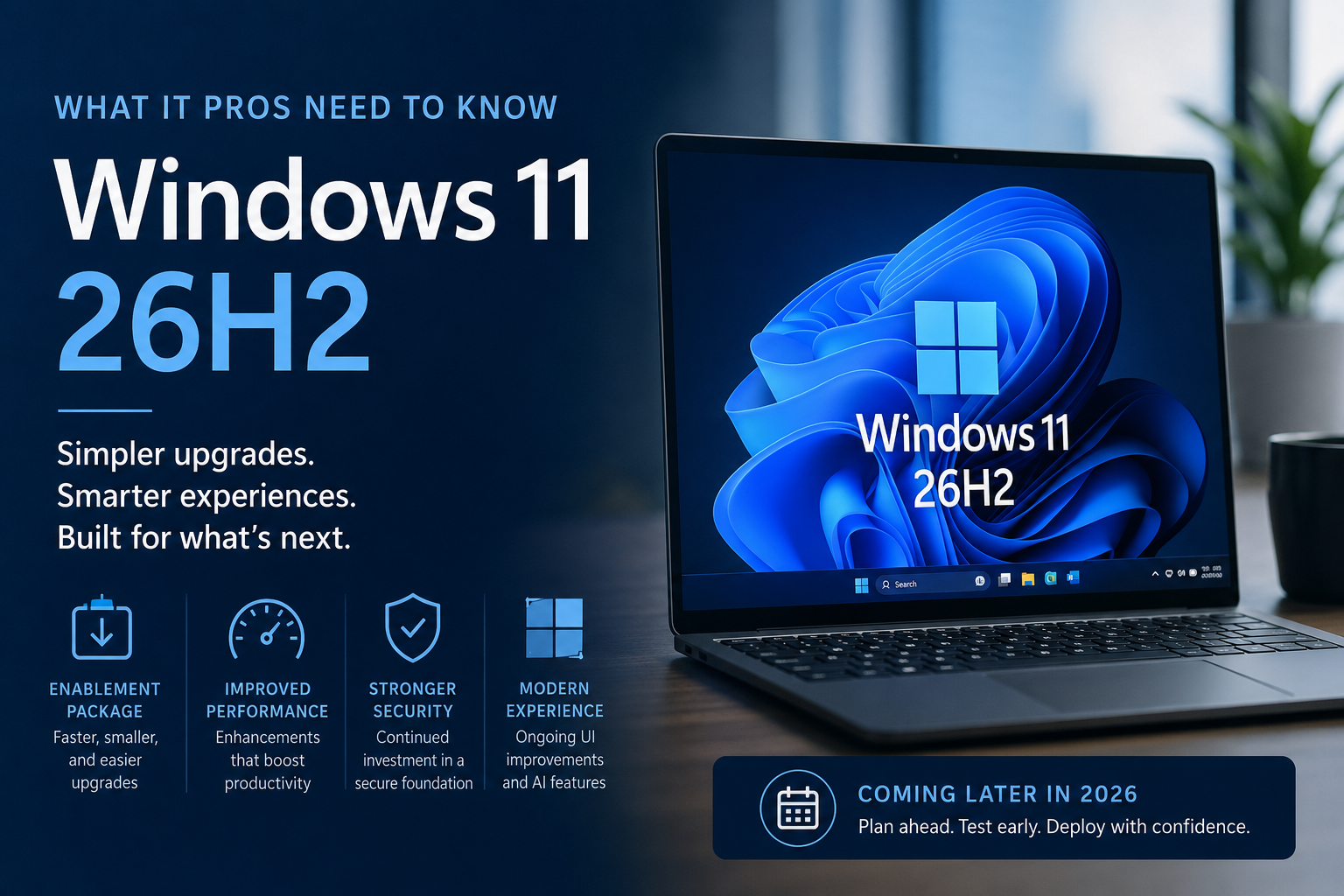
Microsoft has officially started talking about Windows 11 version 26H2, the next major update planned for Windows 11 later this year. While many organizations are still deploying or standardizing on Windows 11 24H2 and 25H2, it is already time for IT administrators to start understanding what 26H2 means for their environments and what planning should begin now.
The good news is that Microsoft appears to be taking a more predictable and less disruptive approach with this release. Rather than introducing a completely new operating system foundation, Windows 11 26H2 builds upon the same servicing platform used by Windows 11 25H2. For many organizations, this means a simpler upgrade process, reduced risk, and a much more manageable deployment experience.
Let’s take a closer look at what Windows 11 26H2 is, how it will be delivered, and what IT pros should be thinking about as the release approaches.
One of the biggest announcements surrounding Windows 11 26H2 is that Microsoft plans to deliver the release through an enablement package. If that sounds familiar, it should.
Microsoft has used enablement packages before to transition devices between feature update versions that share the same underlying code base. Instead of downloading and installing what feels like an entirely new operating system, many of the required components are already present on the device through previous cumulative updates.
The enablement package simply turns on features that have already been staged within the operating system.
For IT departments, this creates several advantages:
In practical terms, organizations running Windows 11 25H2 should experience a significantly faster transition to 26H2 compared to traditional feature updates.
Anyone who has managed Windows updates over the last few years knows that major platform changes can create challenges.
The rollout of Windows 11 24H2 introduced substantial under-the-hood changes. While many improvements came with the release, it also required extensive validation, testing, and compatibility work across hardware, applications, drivers, and management solutions.
With 26H2, Microsoft appears to be prioritizing stability and predictability.
By keeping Windows 11 25H2 and 26H2 on the same servicing branch, Microsoft can focus on improving the platform without forcing customers through another large-scale operating system migration.
This is especially important for enterprise environments where change management, compliance validation, and application compatibility testing consume significant time and resources.
At the time of writing, Microsoft has not published a complete list of Windows 11 26H2 features.
However, Insider builds and early testing indicate several areas receiving continued investment:
Microsoft continues integrating AI-assisted capabilities into Windows Search.
The long-term goal appears to be making search more contextual and useful, helping users find files, settings, applications, and information more naturally without requiring exact keywords.
For organizations already embracing Microsoft Copilot and AI-powered workflows, these improvements could enhance user productivity and reduce time spent hunting for information.
File Explorer remains one of the most heavily used components in Windows.
Recent Insider releases have shown Microsoft refining the overall experience, improving integration with AI-powered functionality, and continuing modernization efforts across the interface.
These changes may not be revolutionary, but they contribute to a more consistent and streamlined user experience.
Microsoft continues its gradual effort to modernize older Windows components.
Areas such as system dialogs, management tools, and legacy user interfaces are steadily being updated to align with the broader Windows 11 design language.
This process has been ongoing for several releases and is expected to continue with 26H2.
For many organizations, these may ultimately be the most important improvements.
Microsoft appears focused on:
One aspect that has created confusion is Microsoft’s separate Windows 11 26H1 release.
Unlike 26H2, Windows 11 26H1 is designed primarily for new ARM-based hardware platforms and is not intended as a broad feature update for existing Windows devices. Most organizations managing traditional Intel and AMD fleets will not encounter 26H1 during normal deployment planning. Instead, 26H2 remains the release that most businesses should focus on.
From a management perspective, Windows 11 26H2 should be one of the easiest feature updates organizations have deployed in recent years.
IT Admins using:
should benefit from the reduced complexity associated with enablement package deployments.
This does not eliminate the need for testing, but it should significantly reduce the overall effort required to validate and roll out the update.
Organizations should still:
The difference is that the underlying platform remains much more familiar than previous major Windows transitions.
Although general availability is still expected later in 2026, now is the ideal time to begin preparation.
Recommended actions include:
Understand which devices are currently running:
This helps establish your upgrade strategy and identify any remaining modernization work.
Ensure your deployment rings remain healthy and representative of your production environment.
Organizations with mature pilot, validation, and production rings will be able to move quickly once 26H2 becomes available.
Use this opportunity to identify:
Addressing these issues before deployment will reduce risk later.
Avoid scheduling feature update projects during periods of peak business activity.
Planning now allows organizations to build deployment timelines that minimize disruption.
Windows 11 version 26H2 may not be the flashiest Windows release we have seen, but that could be exactly what enterprise customers want.
After several years of significant platform transitions, Microsoft appears focused on delivering a release centered around stability, manageability, and simplified servicing. The enablement package approach means organizations should be able to move from Windows 11 25H2 to 26H2 with minimal disruption while still benefiting from ongoing innovation across the platform.
For IT professionals, this is welcome news.
Less time spent troubleshooting feature update deployments means more time focused on security, automation, endpoint management, and delivering value to users.
As Microsoft continues sharing additional details throughout the Insider cycle, organizations should begin preparing now so that when Windows 11 26H2 arrives later this year, deployment becomes another routine update rather than a major migration project.
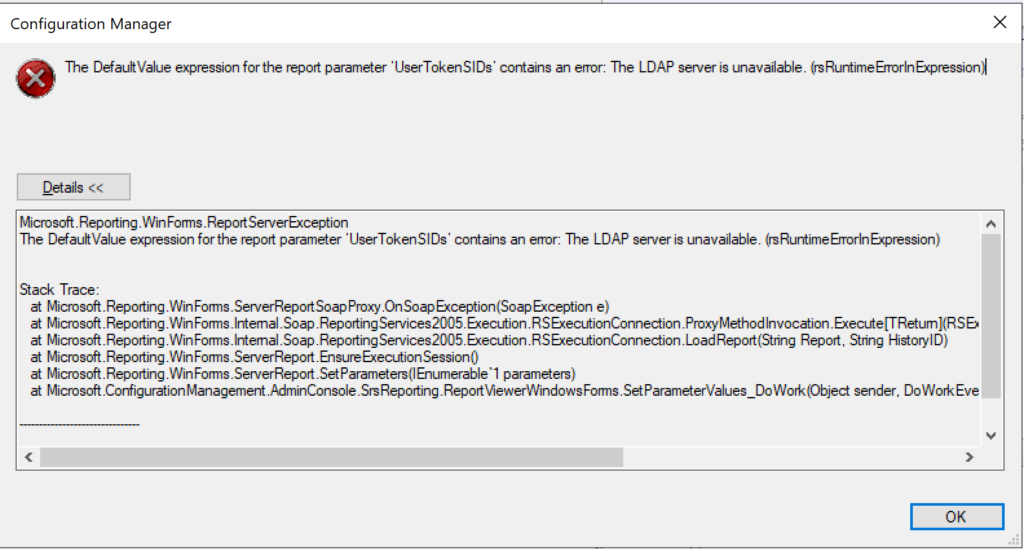
I recently switched to using my new-ish laptop (Lenovo P1) for my day-to-day technical work and decided I should redo my test lab in Hyper-V, particularly for my ConfigMgr / MEMCM / Intune testing and troubleshooting stuff. While I have been actively using my ConfigMgr site in my lab, I didn’t pay much attention to the built-in reports until very recently, when I discovered I had an issue as all the reports produced an error.
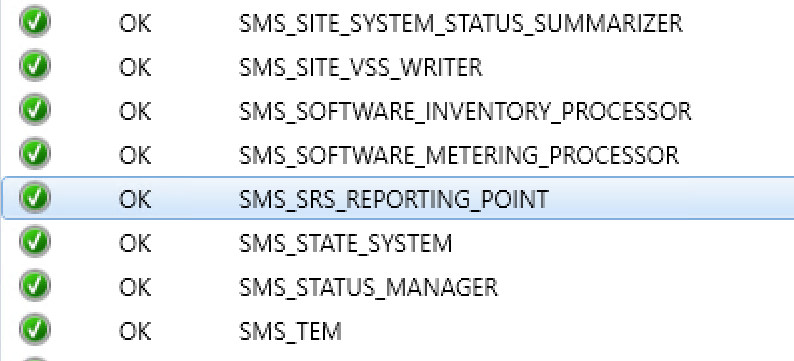
The Component Status in the Monitoring node of the ConfigMgr console indicated no issues with the Reporting Services Point Role.
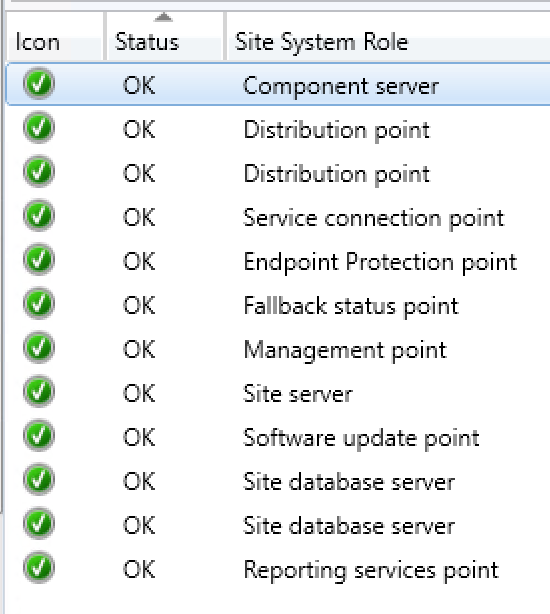
The Site Status was lit up nice and green and indicated all was working fine with my ConfigMgr site.
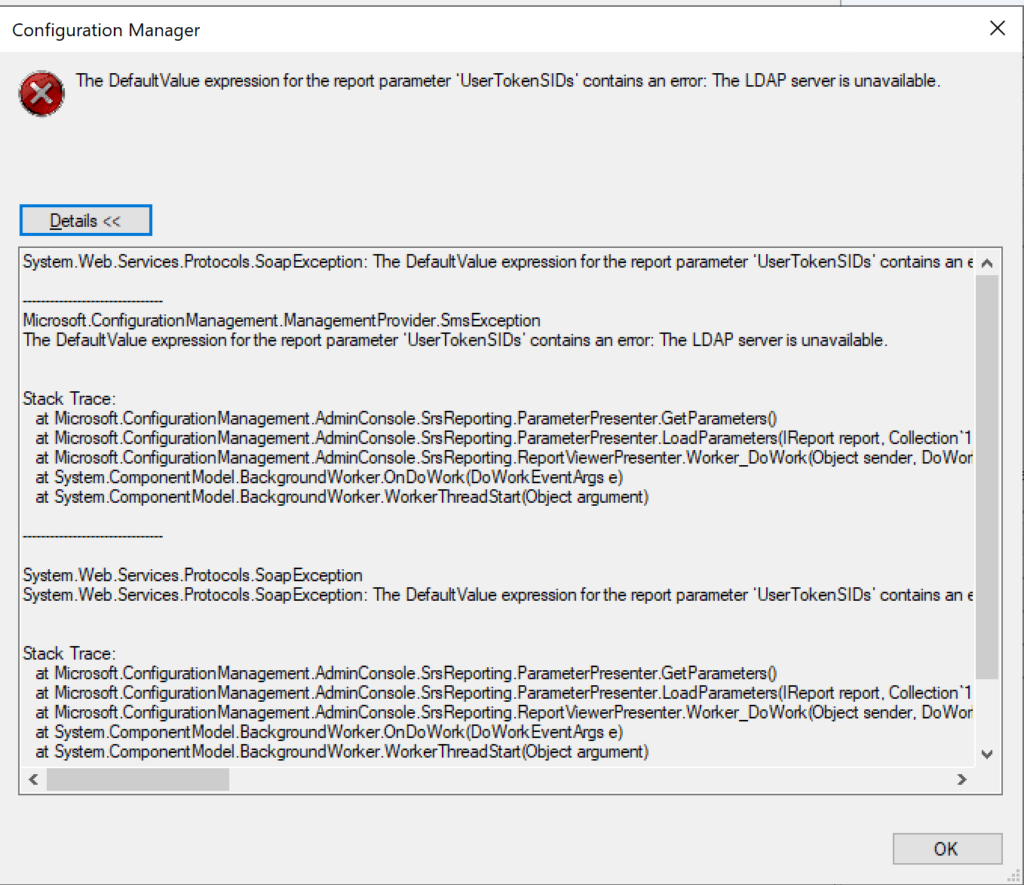
When a report is run from the ConfigMgr console or SSRS, the following error is produced (see image above):
The DefaultValue expression for the report parameter ‘UserTokenSIDs’ contains an error: The LDAP server is unavailable. (rsRuntimeErrorInExpression)
The full error is provided below:
System.Web.Services.Protocols.SoapException: The DefaultValue expression for the report parameter ‘UserTokenSIDs’ contains an error: The LDAP server is unavailable.
at Microsoft.ReportingServices.Library.ReportingService2005Impl.GetReportParameters(String Report, String HistoryID, Boolean ForRendering, ParameterValue[] Values, DataSourceCredentials[] Credentials, ParameterInfoCollection& Parameters)
at Microsoft.ReportingServices.WebServer.ReportingService2005.GetReportParameters(String Report, String HistoryID, Boolean ForRendering, ParameterValue[] Values, DataSourceCredentials[] Credentials, ReportParameter[]& Parameters)
Microsoft.ConfigurationManagement.ManagementProvider.SmsException
The DefaultValue expression for the report parameter ‘UserTokenSIDs’ contains an error: The LDAP server is unavailable.
Stack Trace:
at Microsoft.ConfigurationManagement.AdminConsole.SrsReporting.ParameterPresenter.GetParameters()
at Microsoft.ConfigurationManagement.AdminConsole.SrsReporting.ParameterPresenter.LoadParameters(IReport report, Collection`1 navigationParameters, IResultObject resultObject)
at Microsoft.ConfigurationManagement.AdminConsole.SrsReporting.ReportViewerPresenter.Worker_DoWork(Object sender, DoWorkEventArgs e)
at System.ComponentModel.BackgroundWorker.OnDoWork(DoWorkEventArgs e)
at System.ComponentModel.BackgroundWorker.WorkerThreadStart(Object argument)
I tried several troubleshooting steps including the following:
1. Uninstalled the Reporting role from ConfigMgr
2. Uninstalled the SQL Reporting Services
3. Reinstalled SQL Reporting Services
4. Reinstalled the Reporting role in ConfigMgr
5. Changed the registry key: “HKEY_LOCAL_MACHINE/SOFTWARE/Wow6432Node/Microsoft/ConfigMgr10/
AdminUI/Reporting/ReportBuilderApplicationManifestName” from the value “ReportBuilder_2_0_0_0.application” to “ReportBuilder_3_0_0_0.application”
6. Edited the file:
“C:\Program Files (x86)\Microsoft Configuration
Manager\AdminConsole\bin\Microsoft.ConfigurationManagement.exe.config” and changed the 2 to a 3 in the two locations:
<add key=”10.0″ value=”ReportBuilder_3_0_0_0.application”/>
<add key=”DEFAULT” value=”ReportBuilder_3_0_0_0.application”/>
7. Checked accounts including the service account for SQL reporting
None of the above steps helped fix the UserTokenSIDs issue. I searched high and low on Google / Bing and did not discover anything regarding “LDAP server is unavailable” specifically relating to UserTokenSIDs. I finally got the big guns out and contacted my close friend, Garth Jones, who is a known industry expert with SQL and SSRS. He is a Microsoft MVP and also owns a company called Enhansoft which provides a subscription service for all things reports, which extends the reporting capabilities in ConfigMgr. Enhansoft also provides a free report as a giveaway each month.
RESOLUTION:
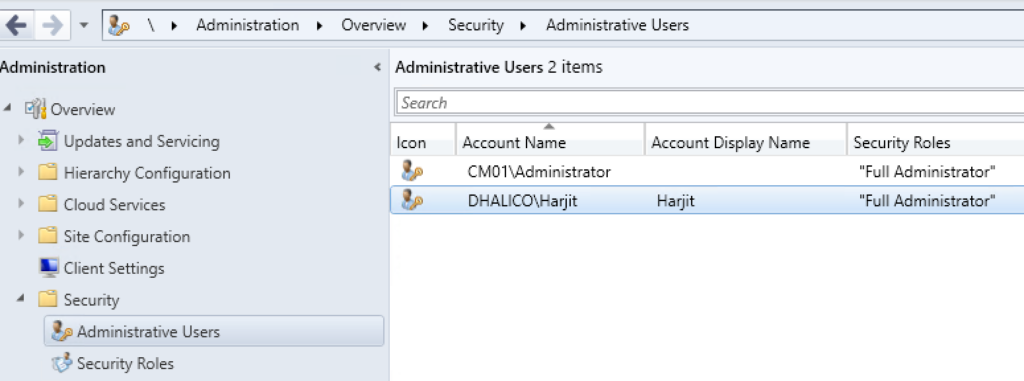
With Garth’s help, the issue was quickly discovered and fixed quite easily. Bottom line is that I was using a local administrator account (CM01\Administrator) to login to my ConfigMgr server as opposed to using a Domain account (Dhalico\Harjit) with the necessary privileges. FYI, “Dhalico” is my domain.
1. Added the Dhalico\Harjit account in the ConfigMgr console under
Administration > Overview > Security > Administrative Users (see image below)
2. Provided “Full Administrator” security role
3. Logged on to the ConfigMgr server as “Harjit” and tested running reports
4. Success! And Thank you Garth! 🙂
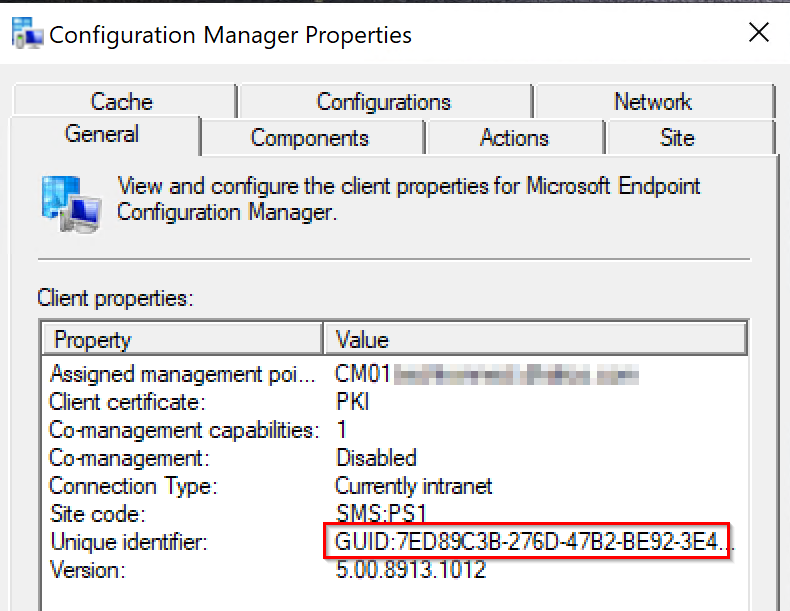
The installation of the ConfigMgr client on workstations and servers is pretty straight forward, and can be done manually, with Client Push, and Software Update Based client installation to name a few. However, it is not as simple when dealing with Windows VDI systems, where extra steps need to be taken to avoid duplicate ConfigMgr client GUIDs and certificates on cloned VDI systems. Below are the steps to follow.
On the master or template system:
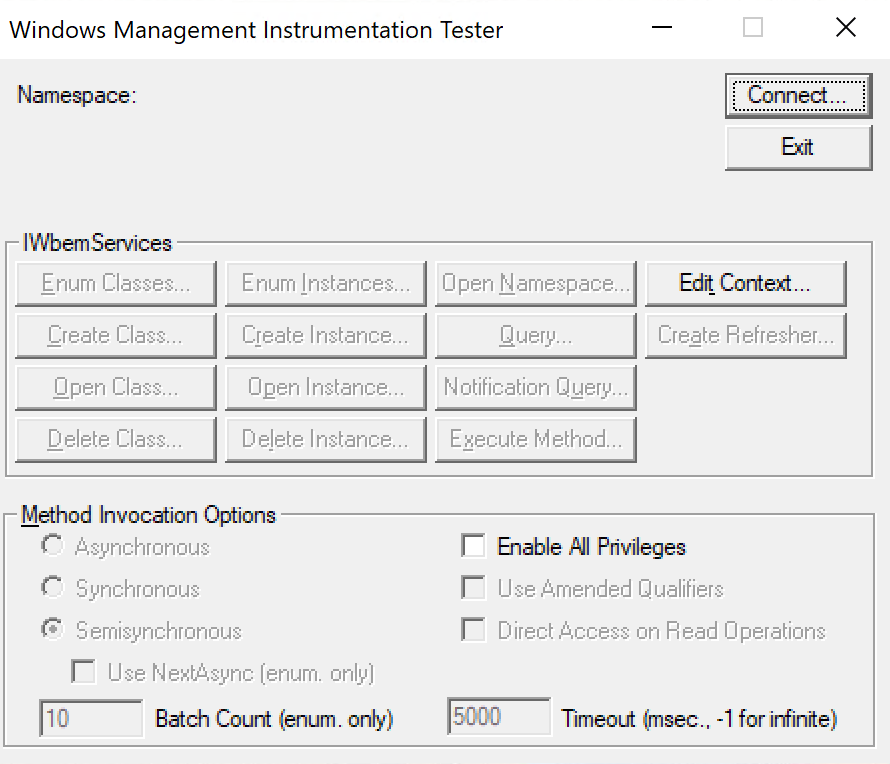
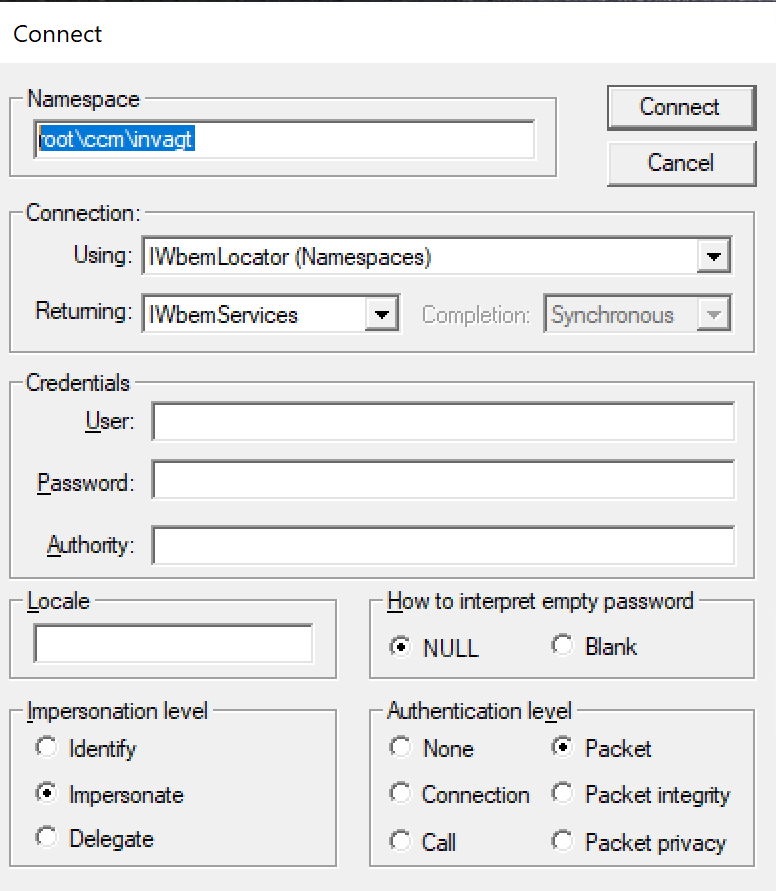
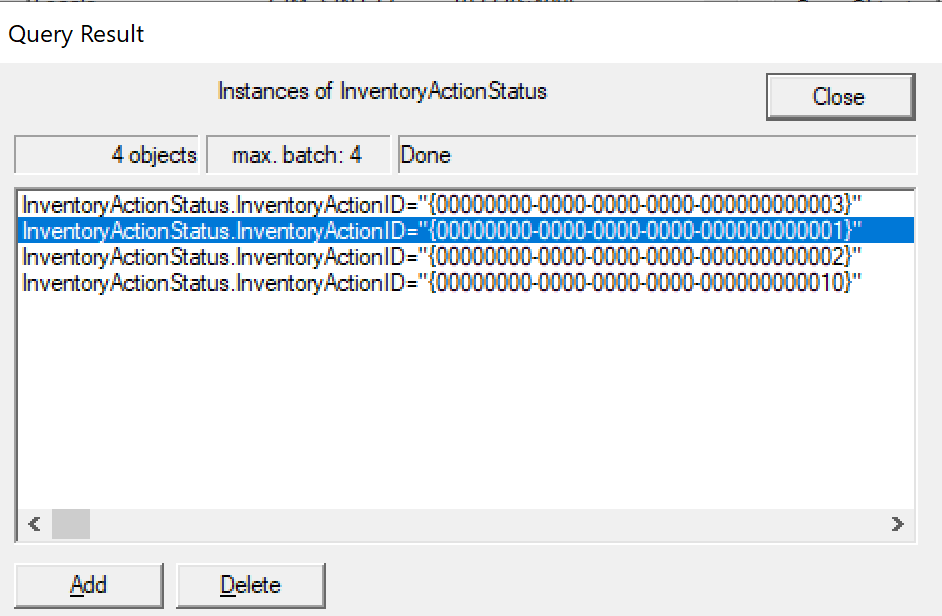
For step number 5, this can be achieved by using the wbemtest tool with the following steps:
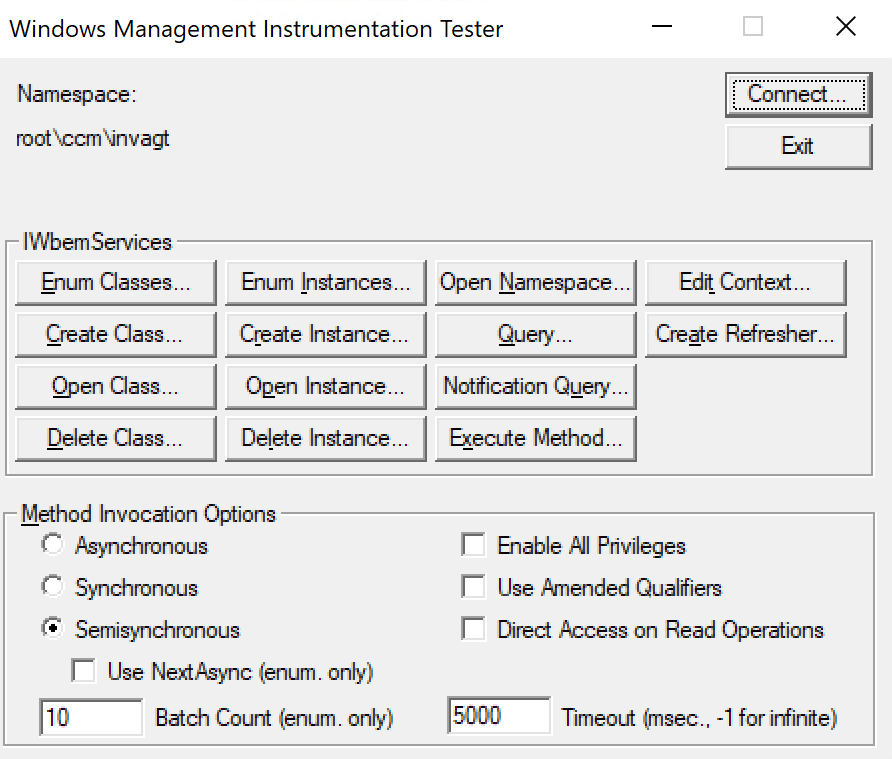
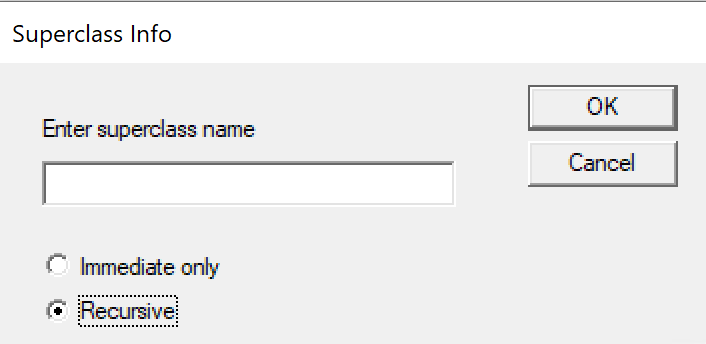
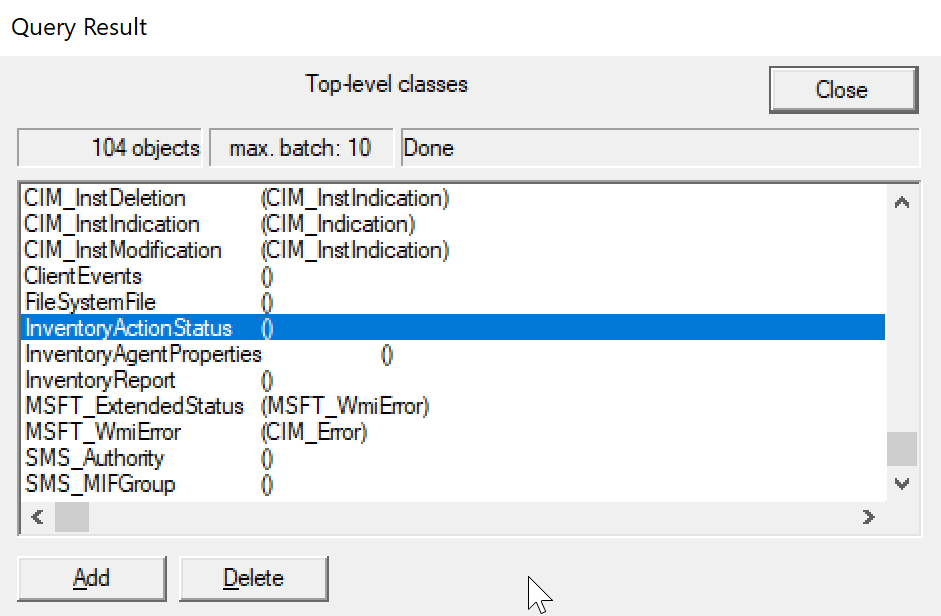
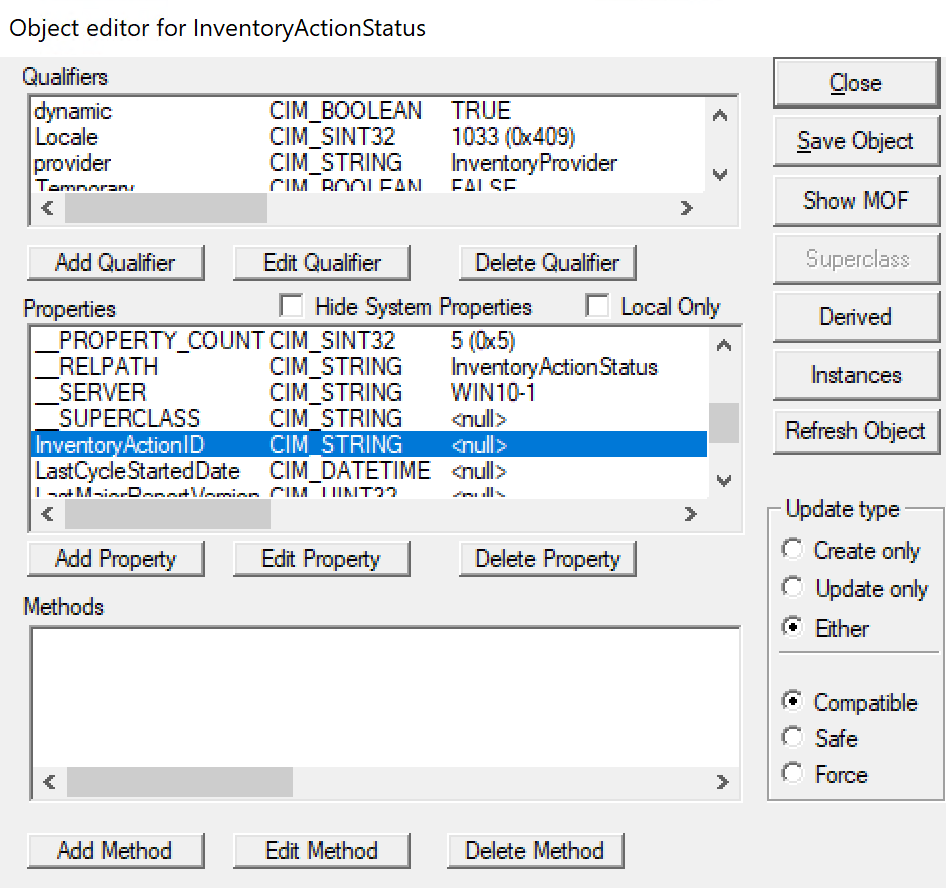

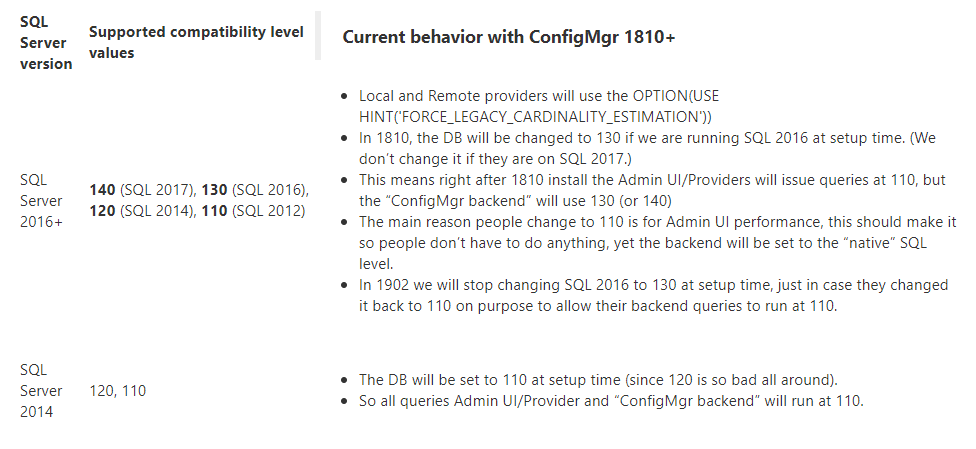
What is Cardinality Estimation or SQL CE Level?
The Cardinality Estimator is a SQL Server Query Processor component that is responsible for predicting the number of rows that the query will return. Microsoft provides some great documentation about SQL CE which you can read more on Microsoft Docs.
As for how SQL CE works and it’s importance with ConfigMgr, Umair Khan of Microsoft has shared a great blog post explaining the details, which you can read more here:
https://blogs.technet.microsoft.com/umairkhan/2019/01/28/configmgr-current-branch-1810-guidance-for-the-sql-ce-levels-with-various-sql-versions
The Microsoft System Center Configuration Manager (ConfigMgr) team has kicked off 2018 with a brand new release of the ConfigMgr Technical Preview branch with version 1801. As always, new features and improvements to the product derive from the feedback they receive from the community on the ConfigMgr UserVoice forum. Now, you can also provide feedback directly from within Windows 10 by using the Feedback Hub App. See additional documentation to provide ConfigMgr feedback.
This update has a number of new features (as listed in the Enterprise Mobility & Security blogpost) which include:
You can update to the 1801 Tech Preview release via the ConfigMgr console under the Updates & Servicing node. The baseline version of the Technical Preview branch is now at version 1711 and available on the TechNet Evaluation Center.
The following document provides further details on the capabilities in Technical Preview 1801 for System Center Configuration Manager.
Here’s my video tutorial which I did for version 1701. The steps are the same for 1801.
Here are the step-by-step upgrade guide (if you prefer not to watch the video) to get your current ConfigMgr Technical Preview site to version 1801:
You will find the 1801 update available in the ConfigMgr console under Administration > Updates and Servicing. If you don’t see it, click on Check for Updates in the menu ribbon.
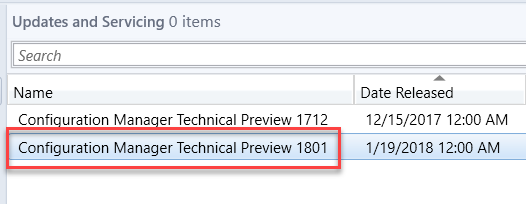
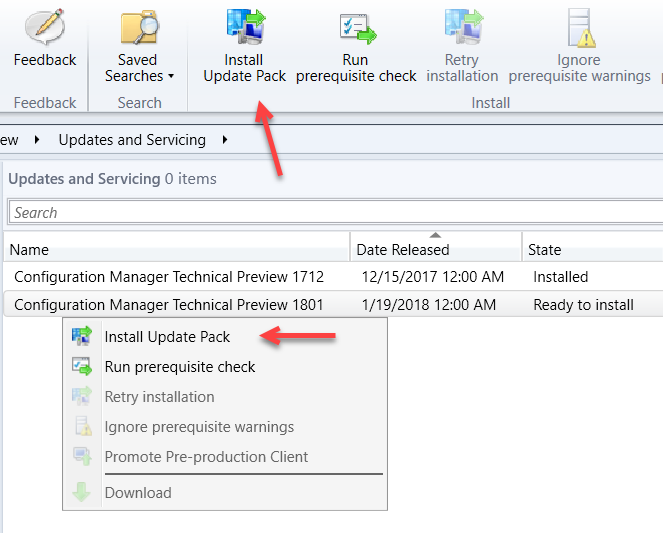
Right-click on Configuration Manager Technical Preview 1801 and click on Install Update Pack. If you prefer, you can also use the Install Update Pack option from the ribbon menu. I recommend that you run the prerequisite check first to make sure there are no issues reported with your site server. Otherwise, you will need to address the issues before proceeding with the update.
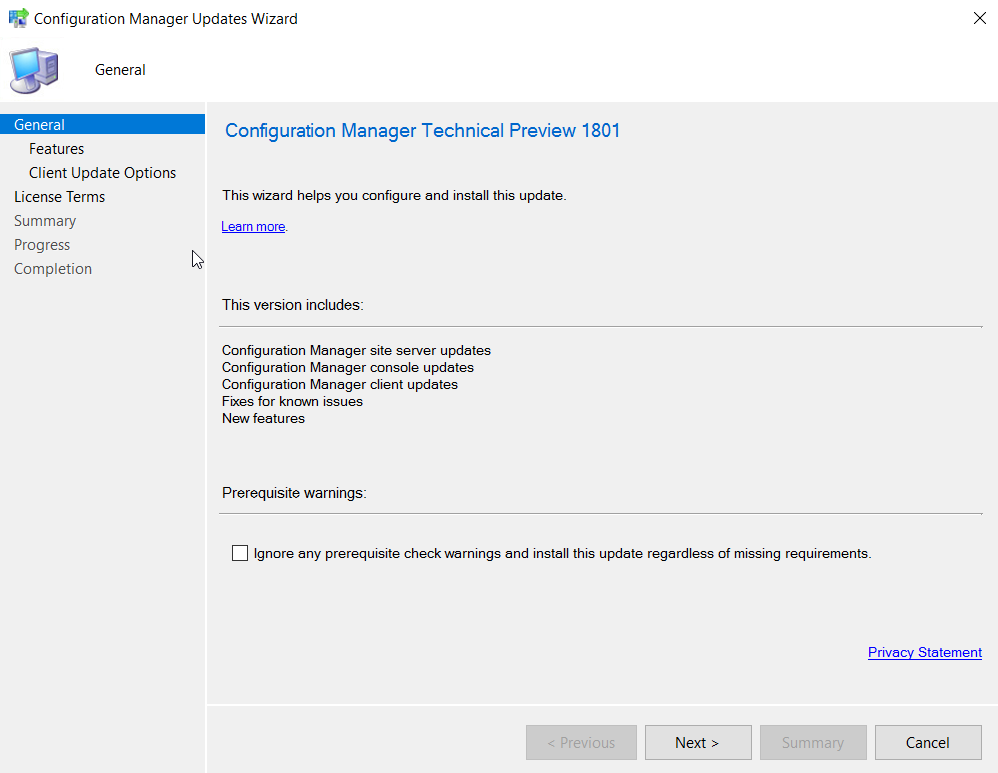
Click Next and select the checkbox if you want to ignore the prerequisite check warning.
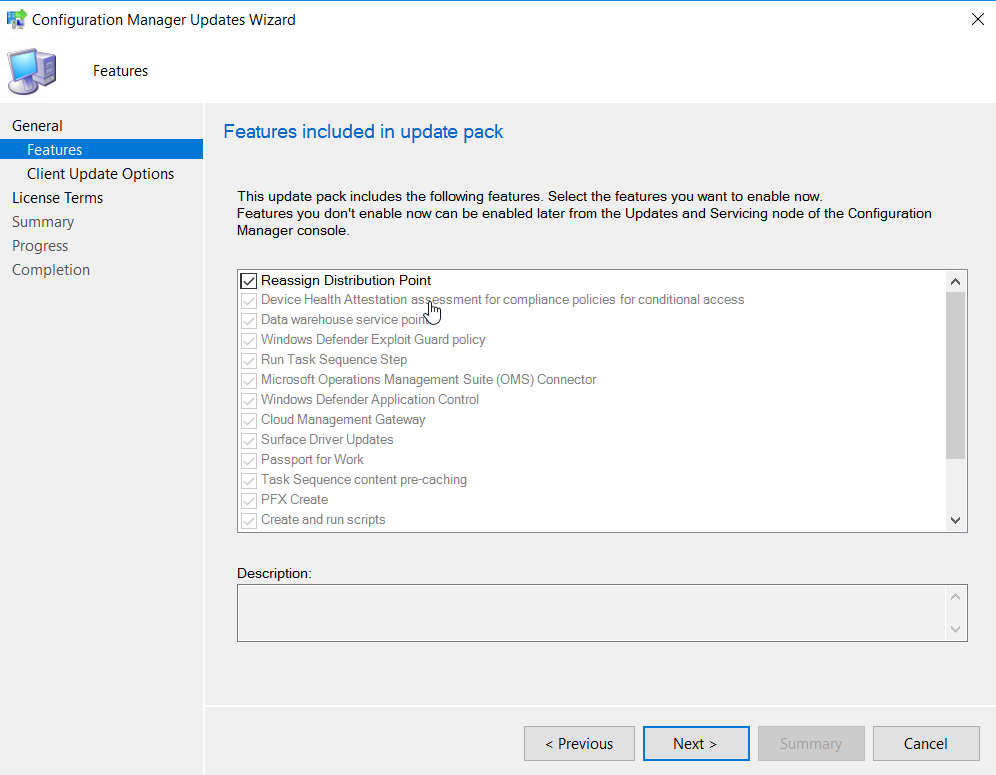
Select the features desired for install in the update pack. You can choose to do this later under the Updates and Servicing node.
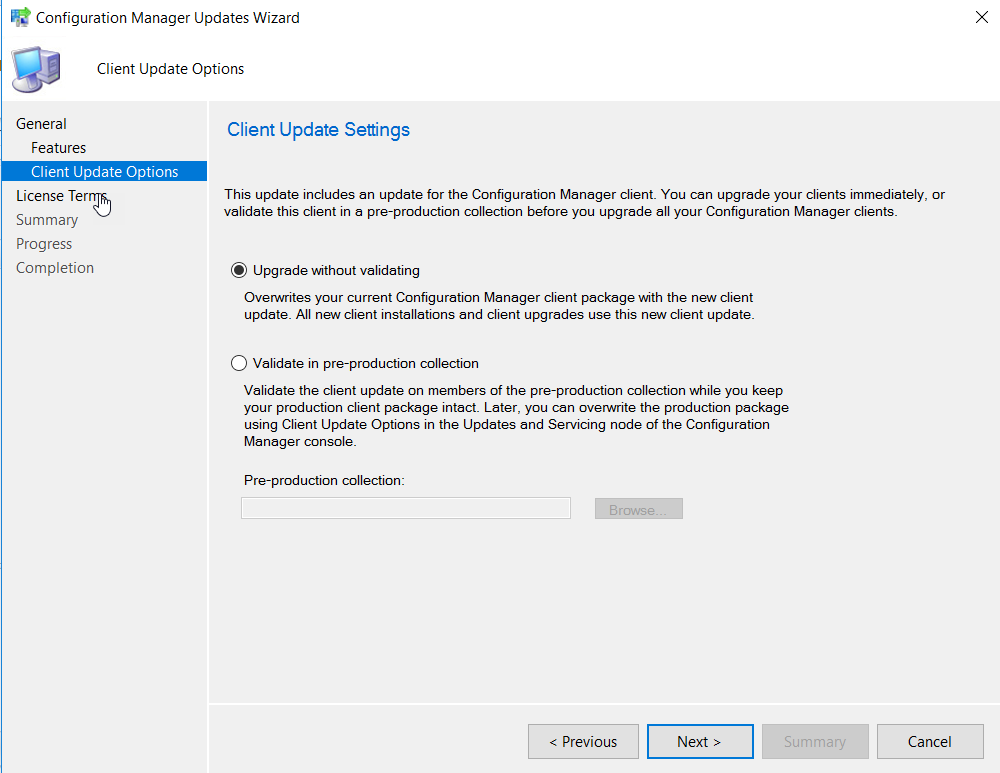
Pick your option to validate or not to validate the upgrade against a collection. For my production Current Branch site, I generally select Validate in pre-production collection and choose one of my test collections for the first phase of the upgrade. However, since this is the Technical Preview site and only used in a test environment, you can continue with the option, Upgrade without validating.
Select the license terms and click Next.
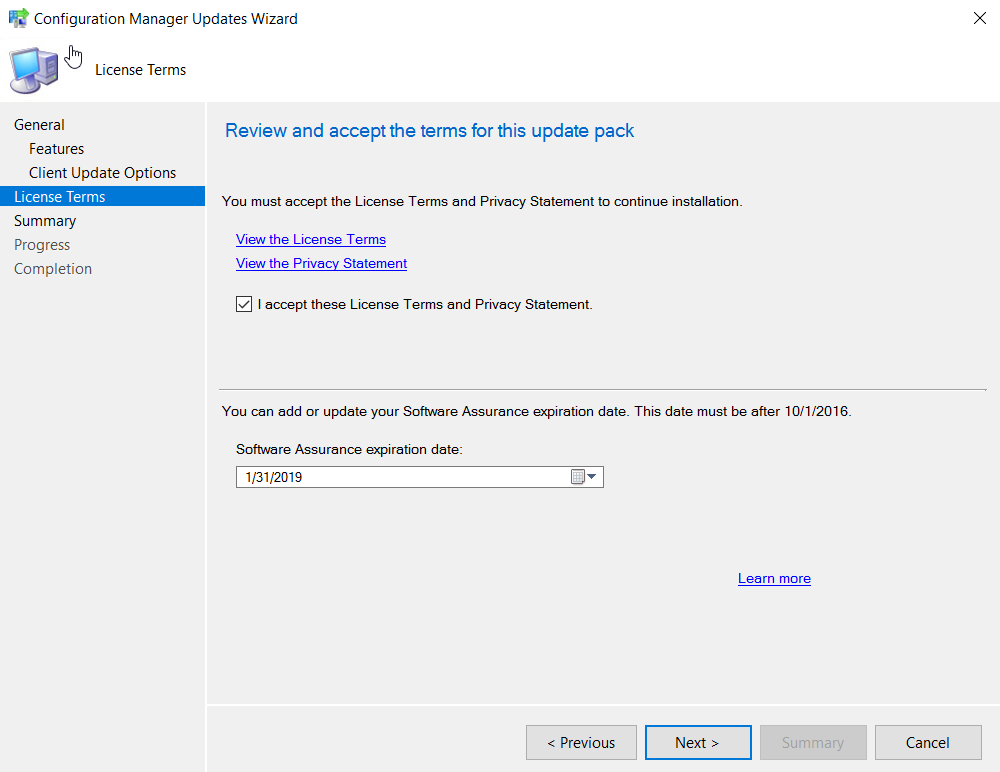
Click Next to confirm the settings.
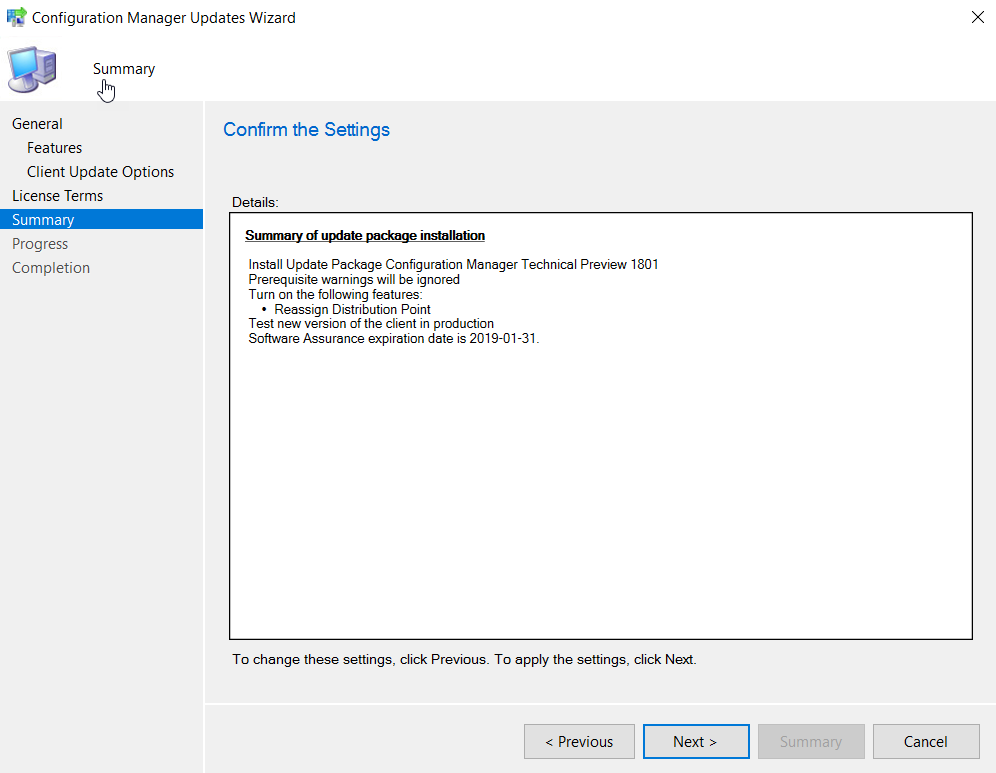
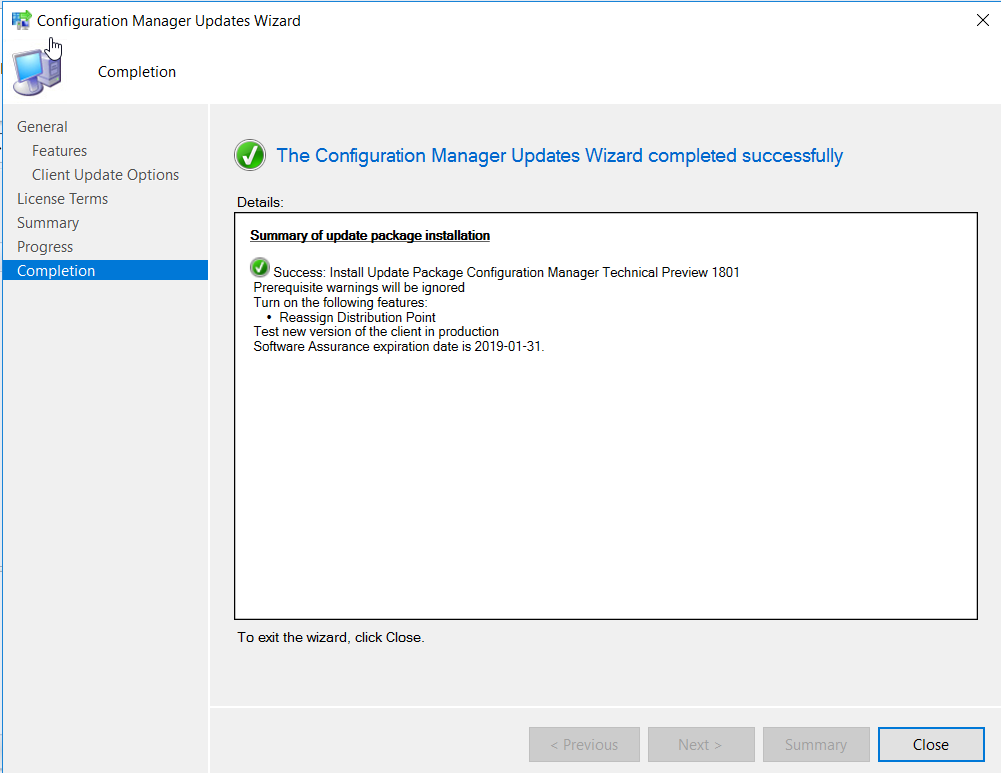
Click Close.
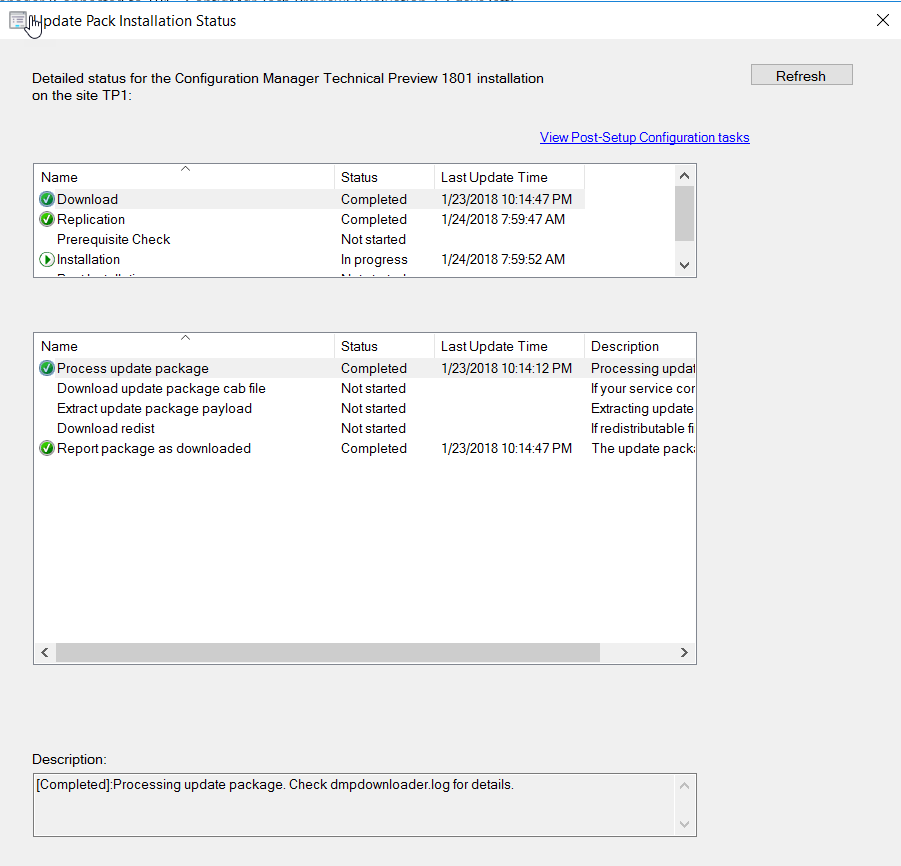
You can now monitor the status of the upgrade under Monitoring > Updates and Servicing Status. Then select the update package name and click on Show Status in the ribbon menu.
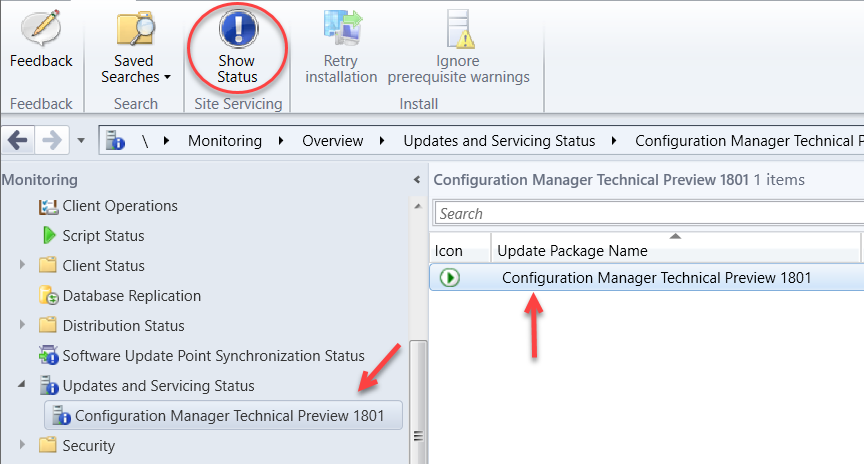
The window below will show the stages of the upgrade process where you can monitor it’s progress. If there are any issues, you will see it listed here with a warning and the details provided in the description box in the bottom of the window.
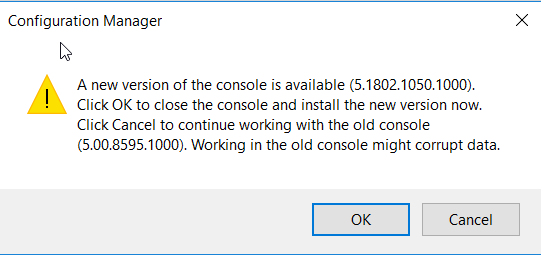
Upon successful completion of the hotfix installation, you will be presented with the pop-up window as seen below to indicate a console upgrade from version 5.0.0.8595.1000 to 5.1802.1050.1000 is available.
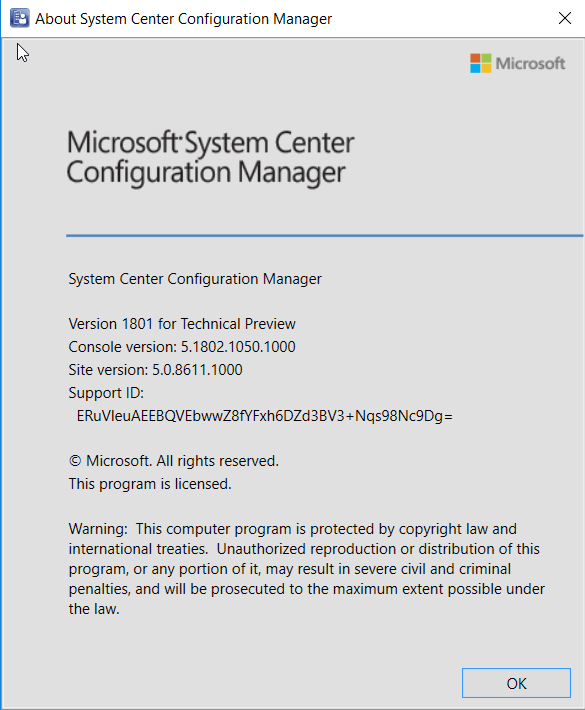
You can verify the console upgrade in the About System Center Configuration Manager drop down menu from the console.
Version 1801 for Technical Preview
Console version: 5.1802.1050.1000
Site version: 5.0.8611.1000
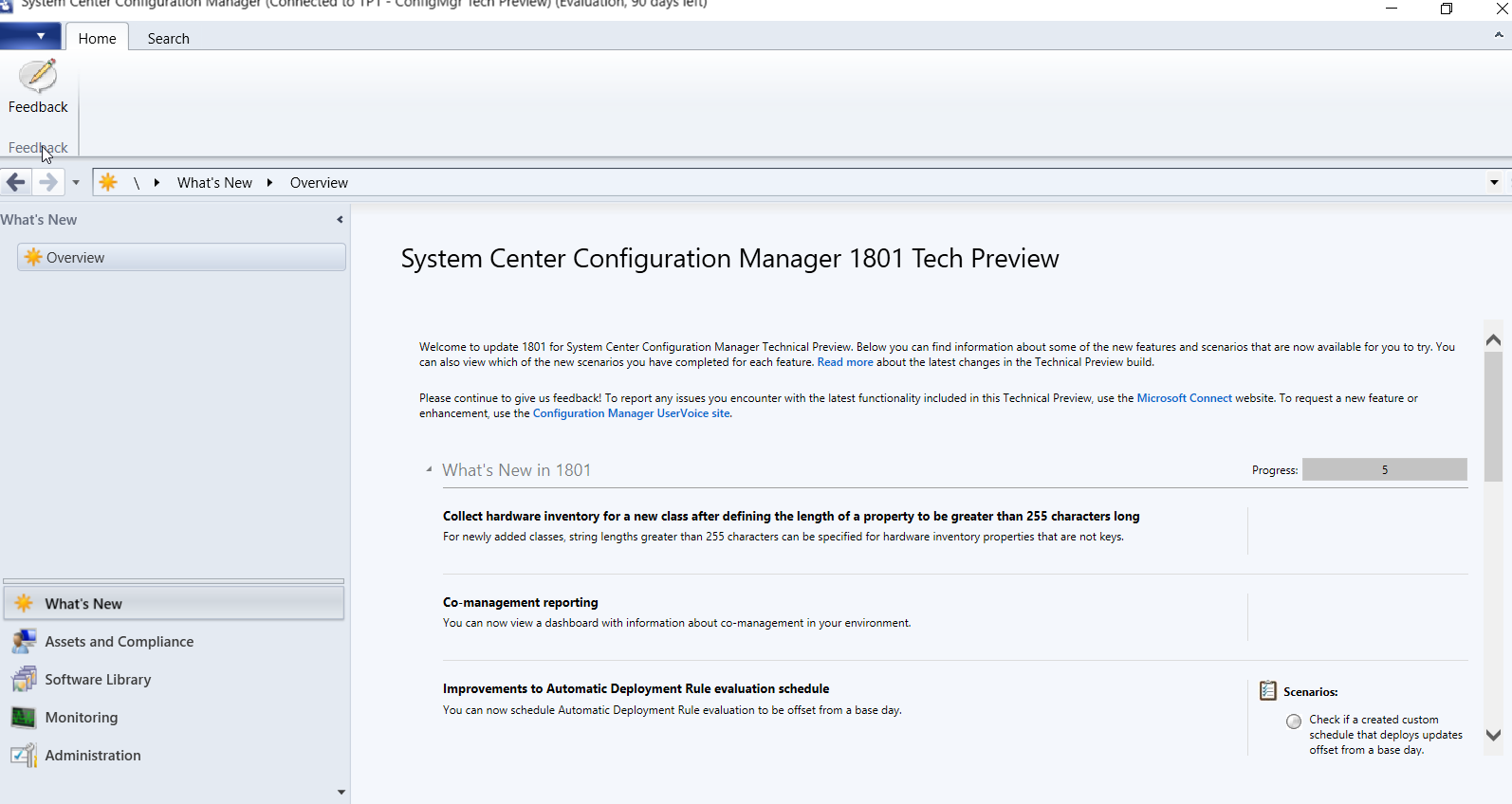
And you now have ConfigMgr Technical Preview 1801 running in your test environment.
ConfigMgr Current Branch version 1710 now has a hotfix (KB4057517) available which addresses some issues, which you can read up here. The following are the fixes resolved with this hotfix (there are 13 of them):
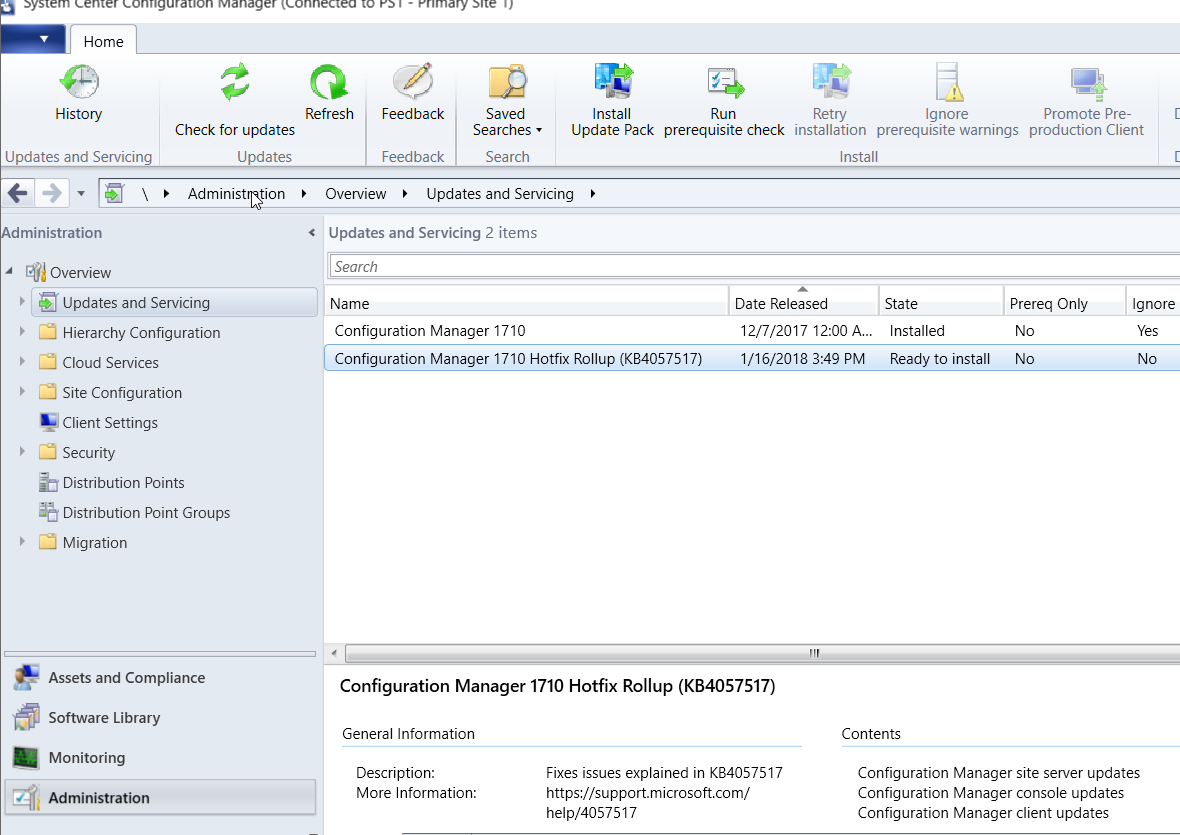
Here are the steps on how to install this hotfix. You will find it available in the ConfigMgr console under Administration > Updates and Servicing. If you don’t see it, click on Check for Updates in the menu ribbon.
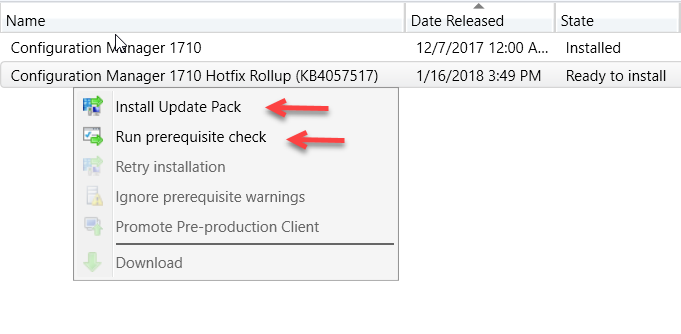
Right-click on Configuration Manager 1710 Hotfix Rollup (KB4057517) and click on Install Update Pack. I recommend that you run the prerequisite check first to make sure there are not issues reported with your site server.
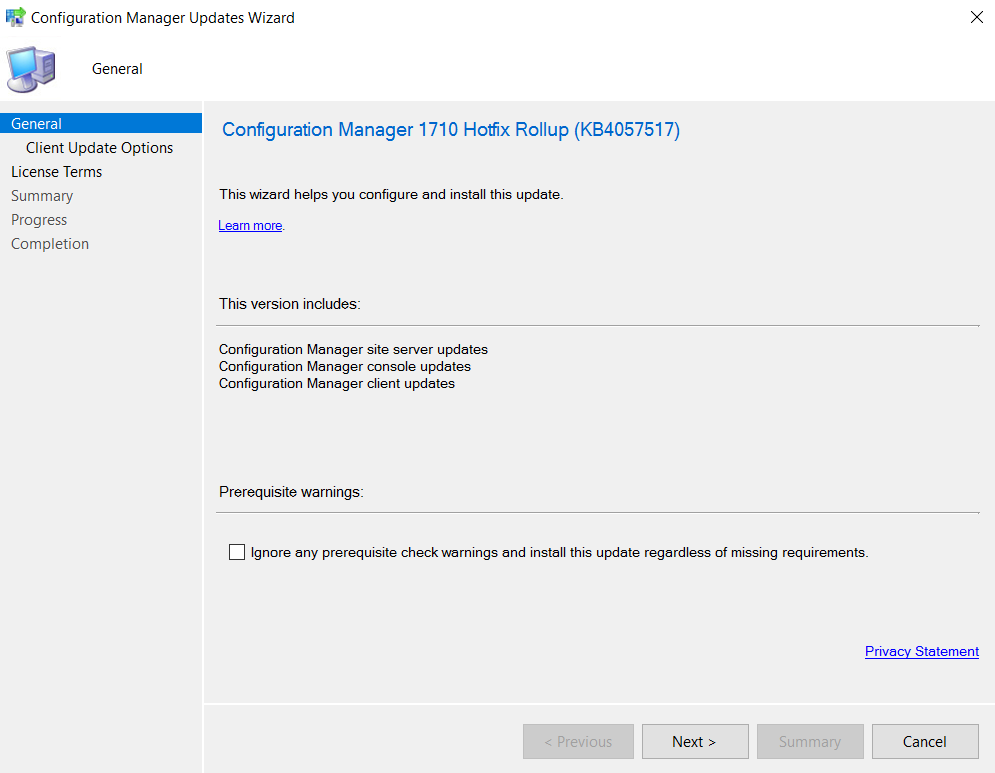
Click Next and select the checkbox if you want to ignore the prerequisite check warning.
Pick your option to validate or not to validate the upgrade against a collection. I generally tend to select Validate in pre-production collection and choose one of my test collections for the first phase of the upgrade.
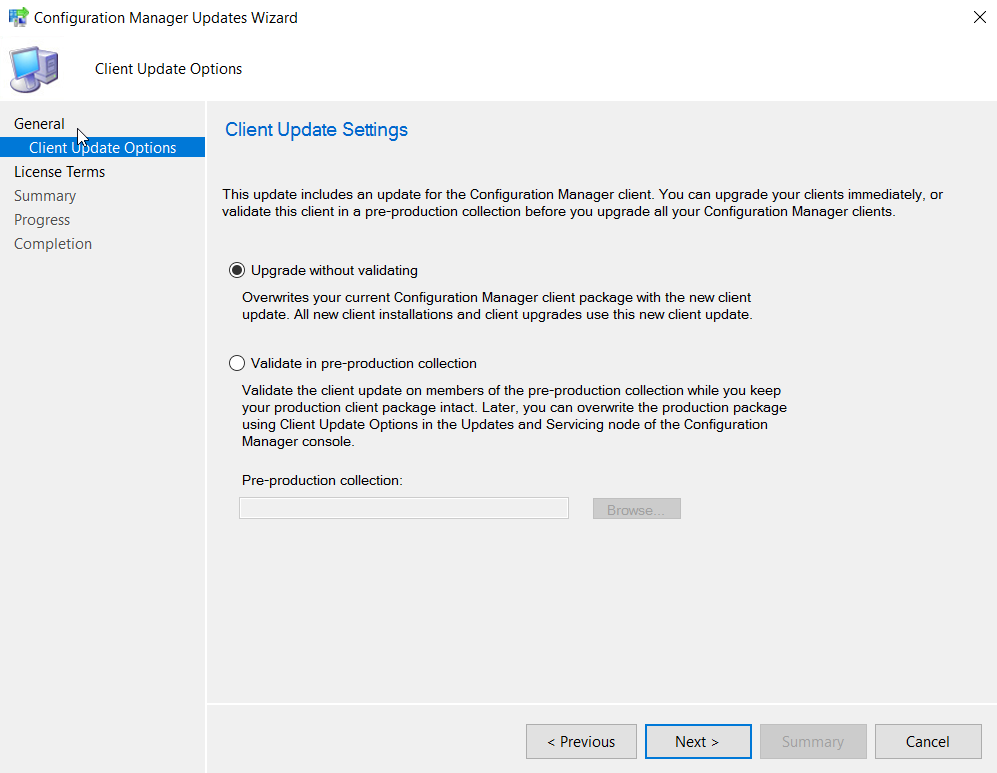
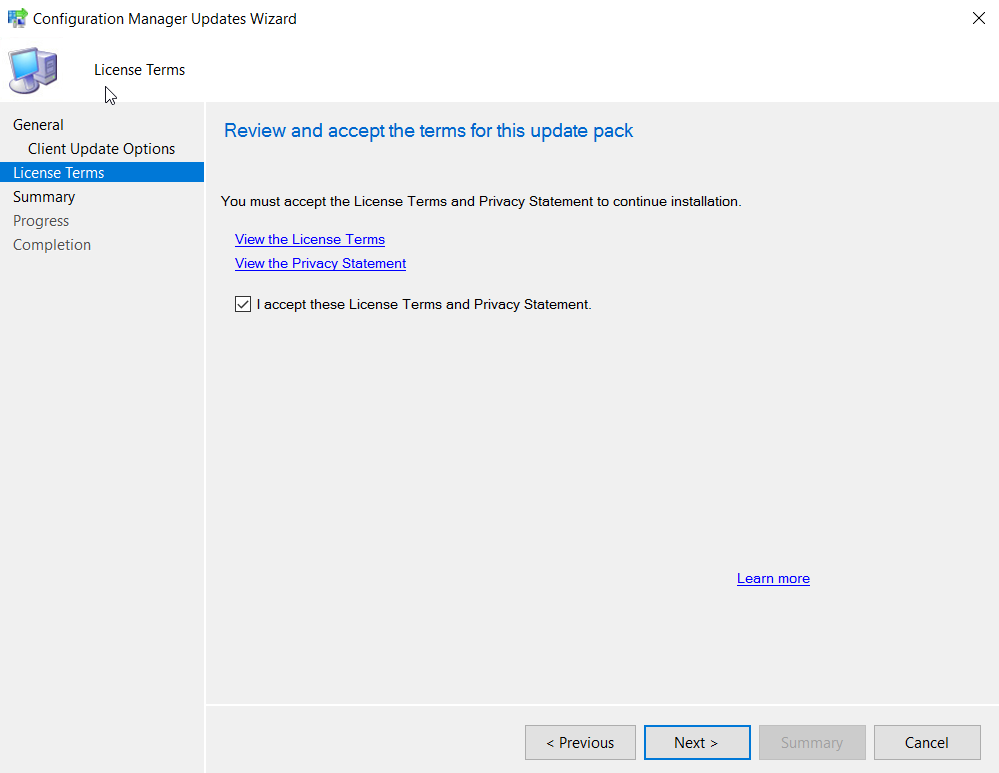
Select the license terms and click Next.
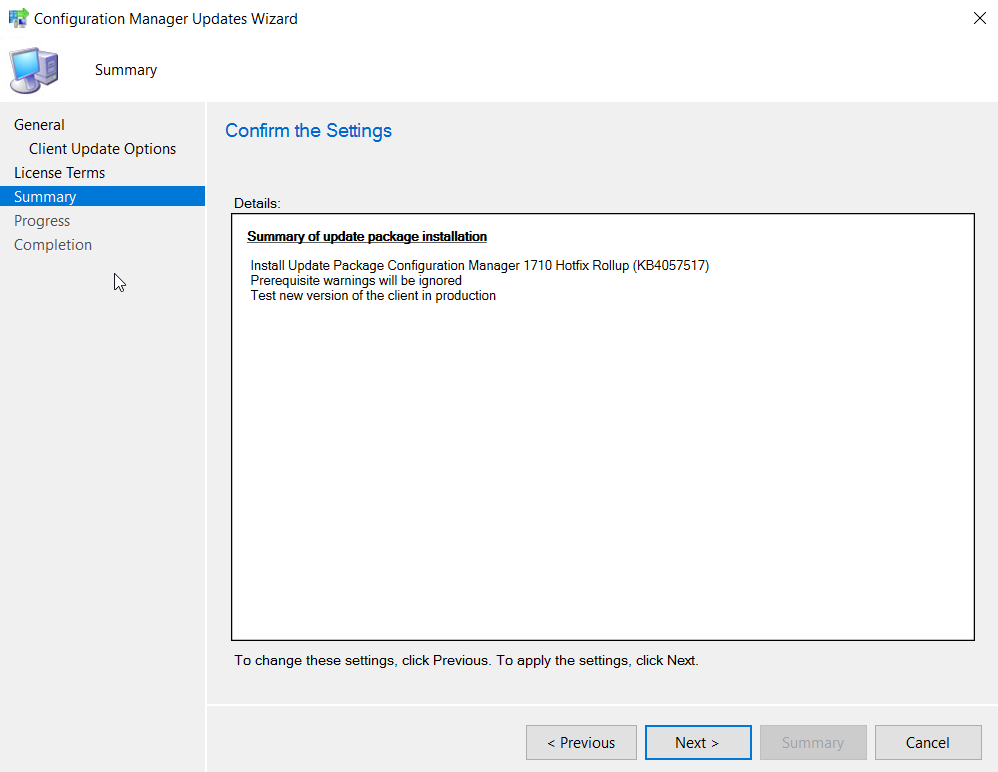
Click Next to confirm the settings.
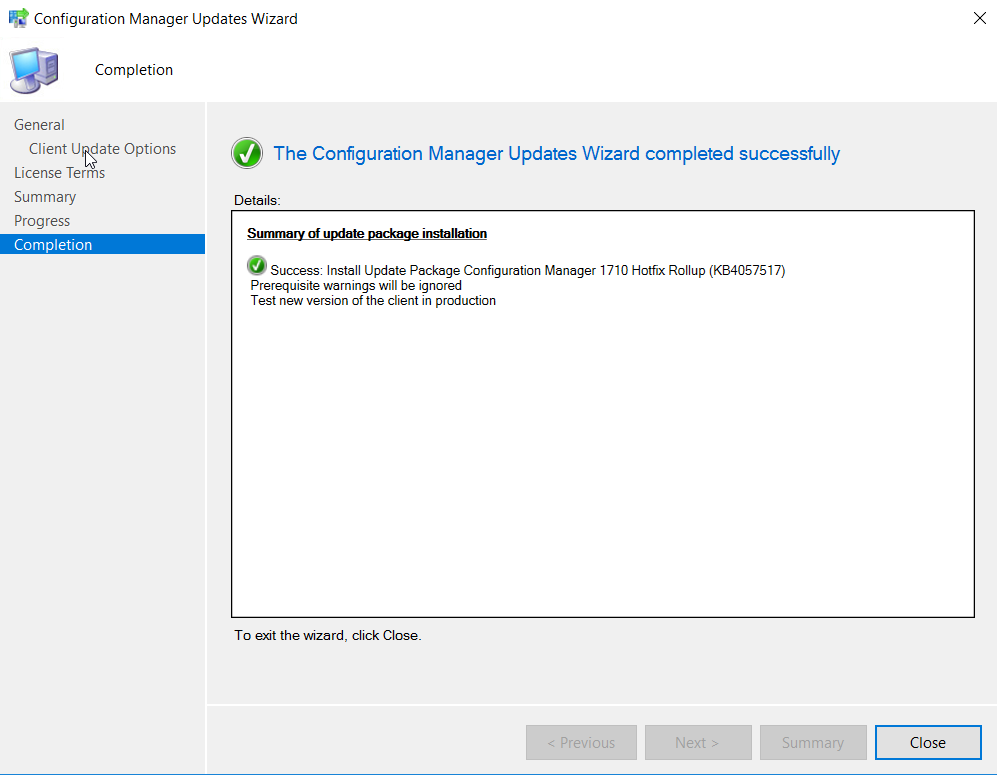
Click Close.
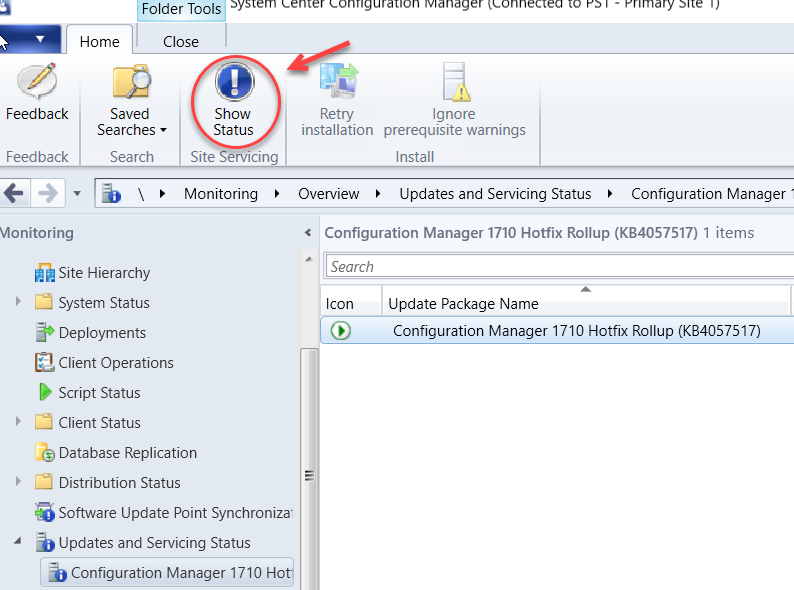
You can now monitor the status of the upgrade under Monitoring > Updates and Servicing Status. Then select the update package name and click on Show Status in the menu ribbon.
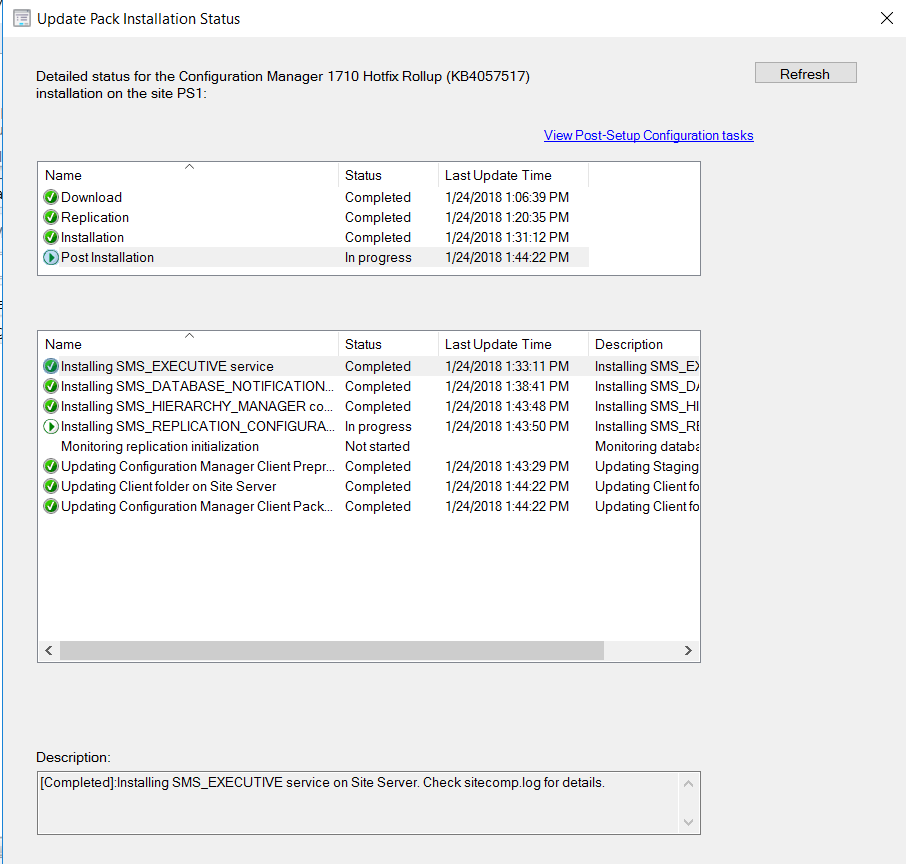
The window below will show the stages of the upgrade process where you can monitor it’s progress. If there are any issues, you will see it listed here with a warning and the details provided in the description box in the bottom of the window.
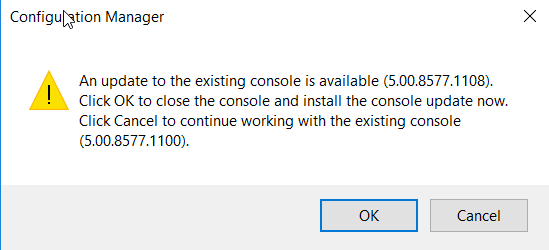
Upon successful completion of the hotfix installation, you will be presented with the pop-up window as seen below to indicate a console upgrade from version 5.0.0.8577.1100 to 5.0.0.8577.1108 is available.
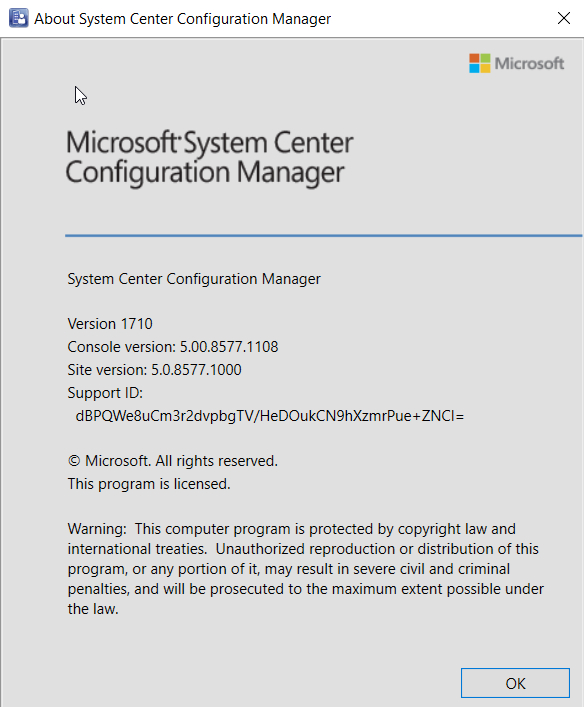
You can verify the console upgrade in the About System Center Configuration Manager drop down menu from the console.
Version 1710
Console version: 5.0.0.8577.1108
Site version: 5.0.8577.1000
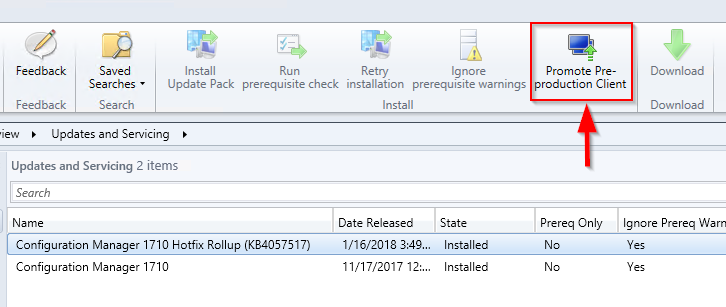
Once you are comfortable with the client upgrade on your test collection which you selected during the validate in pre-production collection phase, you can deploy the client upgrade to all clients in the hierarchy by selecting the Promote Pre-production Client option as seen below.
Your ConfigMgr site is now upgraded with the KB4057517 hotfix.
Every now and then, you will encounter a situation when you need to find which ConfigMgr Collection(s) a specific computer is a member of for troubleshooting purposes. I came across this TechNet post which describes a SQL query to find the collection information.
Run the following query in SQL against the SMS Database:
select v_FullCollectionMembership.CollectionID As ‘Collection ID’, v_Collection.Name As ‘Collection Name’, v_R_System.Name0 As ‘Machine Name’ from v_FullCollectionMembership
JOIN v_R_System on v_FullCollectionMembership.ResourceID = v_R_System.ResourceID
JOIN v_Collection on v_FullCollectionMembership.CollectionID = v_Collection.CollectionID
Where v_R_System.Name0=’ClientMachineName’
Note: Replace ClientMachineName with the name of the Client Machine in question. Additionally, you can also make a Custom Report to get this information if you intend to use this frequently:
The SQL Statement For this Report would be as follows:
select v_FullCollectionMembership.CollectionID As ‘Collection ID’, v_Collection.Name As ‘Collection Name’, v_R_System.Name0 As ‘Machine Name’ from v_FullCollectionMembership
JOIN v_R_System on v_FullCollectionMembership.ResourceID = v_R_System.ResourceID
JOIN v_Collection on v_FullCollectionMembership.CollectionID = v_Collection.CollectionID
Where v_R_System.Name0=@Comp
Click on Prompts while providing the SQL Statement, and Create a new prompt named ‘Comp’ without the quotes. Provide a SQL Statement for the prompt as follows:
select Name0 from v_R_System
The Microsoft Deployment Toolkit (MDT) has been released and the most current build (8450) can be downloaded from the Microsoft Download Center. This update requires the Windows Assessment and Deployment Kit (ADK) for Windows 10 version 1709 (10.1.16299.15) which is available for download on the Microsoft Hardware Dev Center.
Some of the significant changes in this update include:
The following post provides some information on How to get help with MDT, in case you need it.

I recently came across a post by Jim Naroski on The Office 365 Guy TechNet blog site. He listed the links to the UserVoice portal for the various products or topics which Microsoft utilizes to gather feedback and feature requests. One important link is missing from the TechNet blog, which is for the System Center Configuration Manager (ConfigMgr) feedback site, and I have added that to the list below. Start using this valuable resource to help improve products and make your voice heard.
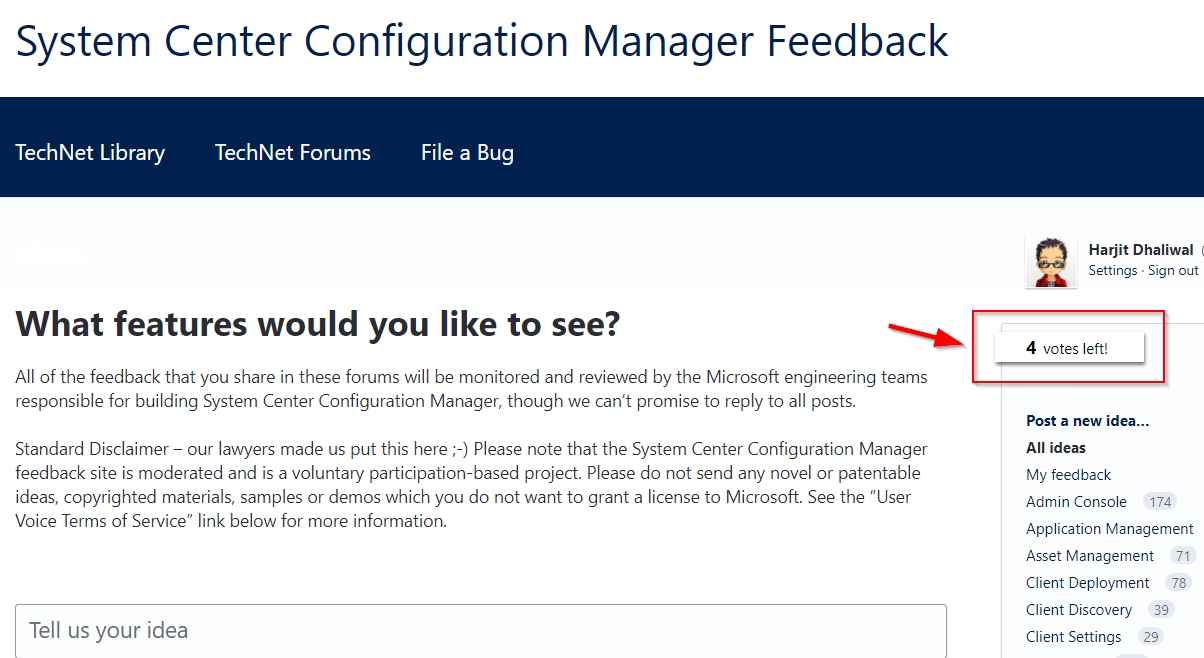
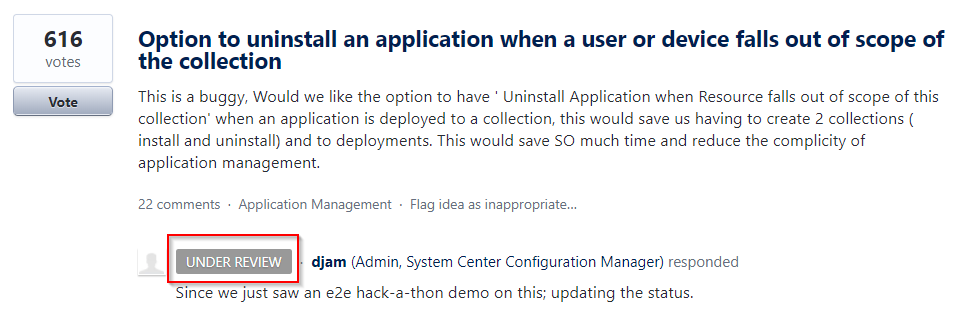
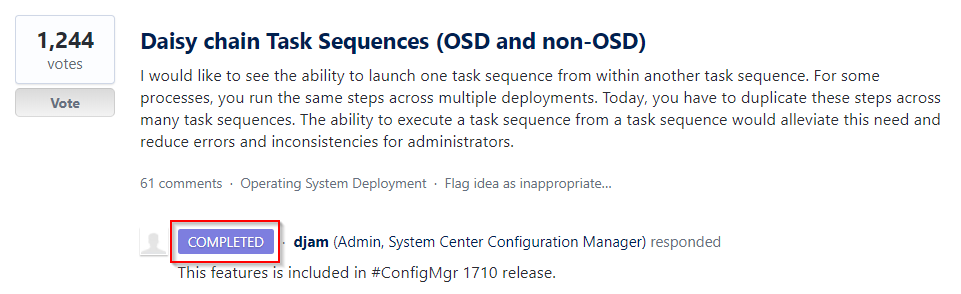
Uservoice provides an opportunity for customers or end users of products to provide feedback, request features and interact with others as well as with the product teams. If you discover a request or feedback that you agree with and would like to support, you can add a vote to that post. Each UserVoice member receives a limited number of votes to use and these votes are returned once the the particular feedback has been acknowledged and completed. See above screen capture.
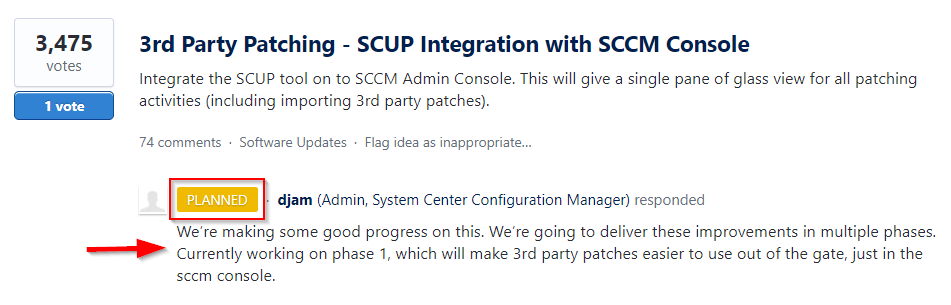
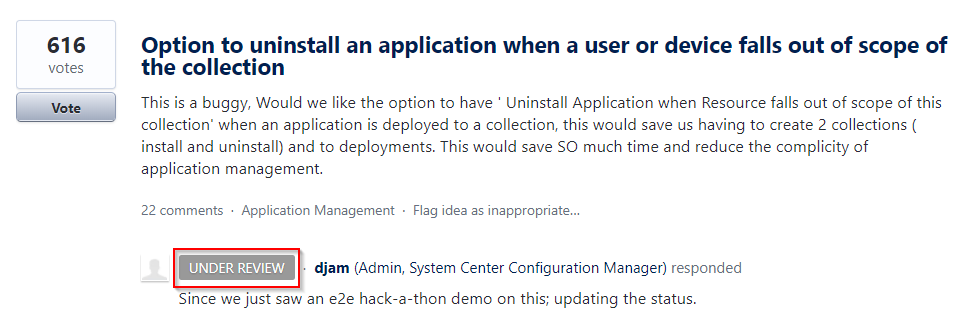
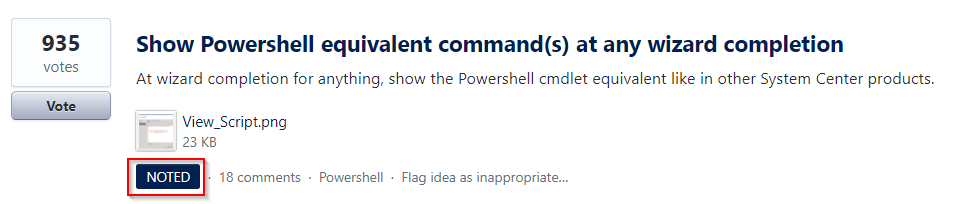
Another useful feature of UserVoice is the ability to see the status of the posts such as Noted, Planned, Under Review, Started, and Completed. See examples below: