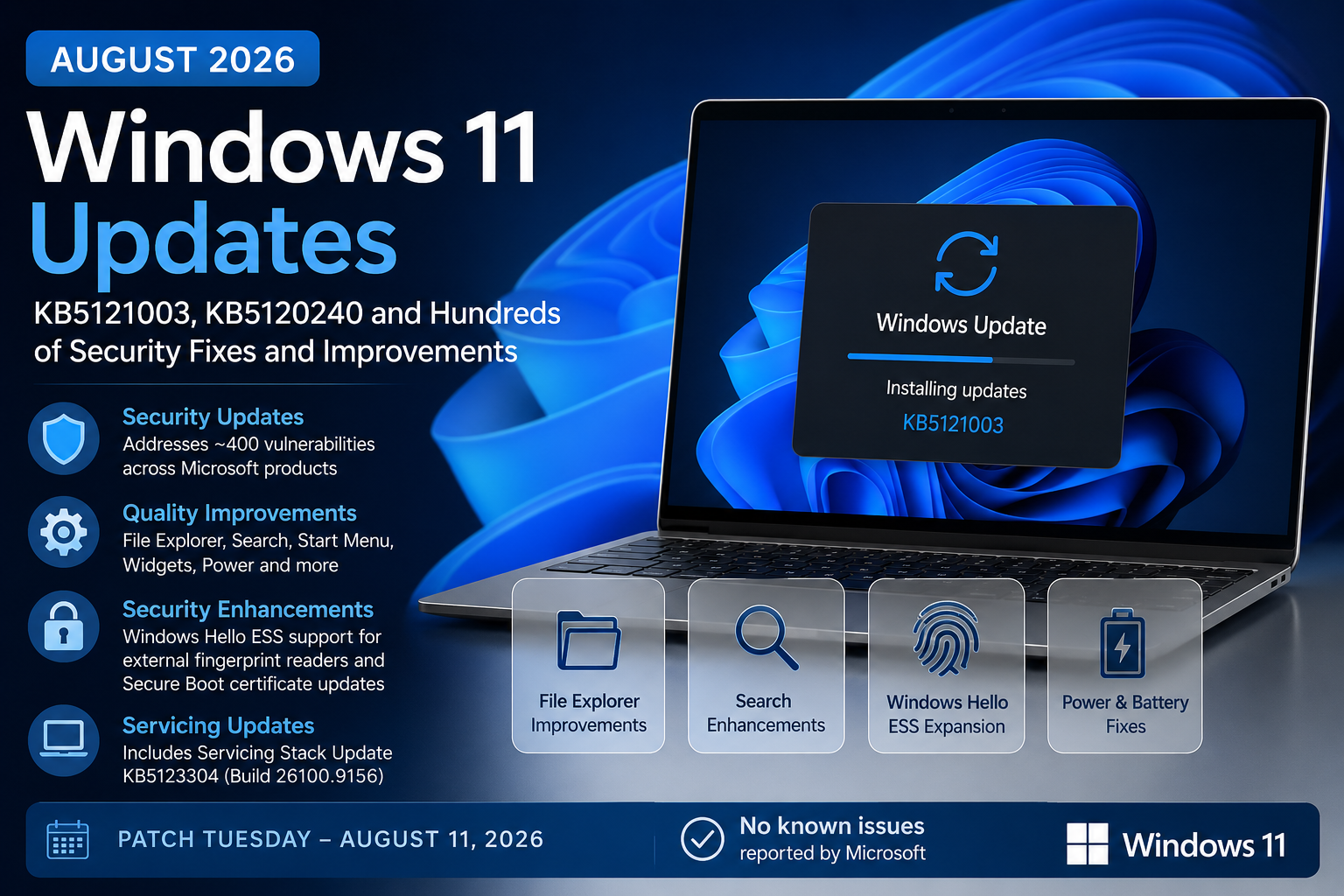
Microsoft has released the August 2026 Patch Tuesday updates for Windows 11, bringing another sizeable round of security fixes along with a surprisingly healthy list of quality improvements and new Windows features.
The main Windows 11 update this month is KB5121003 for Windows 11 versions 25H2 and 24H2. Windows 11 version 23H2 also receives KB5120240 for supported editions.
As usual for Patch Tuesday, these updates are cumulative and mandatory security updates. They include the latest vulnerability fixes plus improvements that Microsoft has been testing through previous optional preview releases.
And if July’s enormous Patch Tuesday was not enough excitement for Windows administrators, August is another busy month. BleepingComputer reports that Microsoft’s August security releases address roughly 400 vulnerabilities across Microsoft products, making patching something organizations should prioritize rather than leave sitting in a deployment ring for too long.
Let’s take a closer look at what is included.
August 2026 Windows 11 Update Overview
The August Patch Tuesday updates were released on August 11, 2026.
For Windows 11, the primary updates are:
| Windows Version | KB | OS Build |
|---|---|---|
| Windows 11 25H2 | KB5121003 | 26200.9168 |
| Windows 11 24H2 | KB5121003 | 26100.9168 |
| Windows 11 23H2 | KB5120240 | Supported 23H2 editions |
KB5121003 applies to all editions of Windows 11 25H2 and 24H2. Microsoft combines the updates for these two versions because they share the same servicing foundation. As a result, the fixes are essentially the same across both releases.
Windows 11 23H2 continues to receive updates for supported Enterprise and Education editions. Home and Pro editions of Windows 11 23H2 have already reached end of support.
Security Updates and Vulnerabilities
Security is obviously the biggest reason to deploy the August updates.
According to reporting around the August 2026 Patch Tuesday release, Microsoft’s security updates address approximately 400 vulnerabilities across its product ecosystem. This number includes vulnerabilities beyond Windows itself, so administrators should review the Microsoft Security Update Guide for the products deployed in their environments rather than assuming all 400 apply to every Windows endpoint.
The Windows cumulative updates incorporate Microsoft’s latest operating system security protections covering components throughout the Windows platform.
As always, organizations should pay particular attention to vulnerabilities affecting areas such as:
- Windows authentication and credential components
- Windows kernel and kernel-mode drivers
- Networking components
- Windows graphics and user interface components
- Remote access technologies
- Windows storage and file system components
- Secure Boot
- Windows Update and servicing components
Microsoft’s Security Update Guide remains the best source for determining which CVEs apply to a specific operating system, server workload, Office product, or Microsoft application.
The important point for administrators is that these are Patch Tuesday security updates. Even if some of the user-facing improvements are not particularly important to your environment, the security fixes make the update itself important.
KB5121003 for Windows 11 25H2 and 24H2
Installing KB5121003 moves Windows 11 to:
Windows 11 25H2: OS Build 26200.9168
Windows 11 24H2: OS Build 26100.9168
Microsoft says the release also includes improvements from several previous updates, including the July 28 preview release KB5101684 and earlier July security and out-of-band releases.
That means organizations that skipped the optional July preview update still receive the fixes that eventually graduated into the August cumulative update.
This is one of the benefits of Windows cumulative servicing. You do not need to install every optional preview update along the way.
File Explorer Improvements
File Explorer receives several welcome quality-of-life improvements this month.
File sizes displayed in Details view can now use more appropriate units such as KB, MB, and GB instead of presenting everything primarily in kilobytes.
That sounds small, but it makes scanning folders with larger files much easier.
Microsoft is also expanding middle-click behavior in File Explorer. Users can middle-click a folder from locations such as the Address Bar or Home page to open the folder in a new tab.
Other File Explorer improvements include fixes for situations where the Home page could briefly flash gray during loading or unexpectedly scroll back to the top.
Microsoft has also improved thumbnail rendering for files appearing in the Recommended section of File Explorer Home.
None of these will transform how administrators manage Windows, but together they continue Microsoft’s gradual refinement of the modern File Explorer experience.
Windows Search Gets Better at Typos
Windows Search receives another usability improvement.
Search is becoming more forgiving when users mistype the name of an installed application or only remember part of the application name.
For example, users searching for an application with a minor spelling mistake should have a better chance of Windows finding what they actually intended.
Microsoft is also improving the ranking of Settings results so that more relevant configuration options appear higher in search results.
This is one of those changes that sounds minor until you support thousands of users who cannot remember exactly where Microsoft moved a particular Settings page.
Voice Access Improvements
Microsoft continues to invest heavily in Windows accessibility features.
Voice Access now gains Voice Isolation, which attempts to prioritize the user’s voice while filtering out other people speaking nearby and other background sounds.
Users can choose between multiple recognition modes:
- Voice Isolation
- Remove background noise only
- No filtering
Voice Isolation requires a one-time voice setup.
Microsoft is also adding Korean language support for Voice Access and improving the reliability of Voice Access startup.
These are useful improvements for accessibility, shared workspaces, conference environments, and users who increasingly interact with their PCs through voice.
Windows Hello Enhanced Sign-In Security Expands
One of the more interesting security-related features arriving with this update is expanded support for Windows Hello Enhanced Sign-in Security, or ESS.
ESS can now support compatible external fingerprint sensors, rather than being limited mainly to fingerprint hardware integrated directly into a Windows device.
This could be particularly useful for desktop PCs, shared workstations, and other scenarios where an external biometric reader makes more sense than built-in hardware.
Users with supported hardware can configure the reader through:
Settings > Accounts > Sign-in options
Microsoft originally discussed this capability earlier in 2026, and the feature is now beginning to roll out more broadly.
For enterprise organizations investing in passwordless authentication, this is another small but meaningful expansion of the Windows Hello ecosystem.
Precision Touchpad Controls
Windows is also introducing additional controls for precision touchpads.
Users can configure options such as:
Scroll and zoom speed
This lets users adjust the baseline speed used when scrolling or zooming.
Accelerated scrolling
Repeated gestures can increase scrolling speed, making it quicker to navigate through long pages and documents.
Again, this is more of a user-experience improvement than an enterprise management change, but laptop-heavy organizations may appreciate the additional customization.
Start Menu Improvements
The Start menu continues to evolve.
Microsoft has improved the reliability of Start menu view preferences so that Windows is more likely to remember the layout or view previously selected by the user.
Keyboard navigation inside the Start menu application list has also been improved.
Microsoft is additionally refreshing the account control area of Start and may display subscription information for users signed into Windows with a Microsoft account.
For enterprise-managed devices, administrators will obviously want to evaluate consumer-oriented account experiences depending on how their Windows configuration policies are designed.
Widgets Changes
Widgets receive a couple of visual and behavioral changes.
Notification badges on the taskbar can now use the user’s Windows accent color instead of always appearing red.
Microsoft is also simplifying the default Lock screen widget experience. New users will initially see Weather as the primary Lock screen widget rather than a larger collection of widgets.
Organizations managing Lock screen experiences through policy may not see much impact here, but it is another reminder that Microsoft’s continuous innovation model means parts of the Windows interface can continue evolving between annual feature releases.
Accessibility Improvements
The Windows Magnifier experience is changing on touch-enabled devices.
Horizontal and vertical touch bars used for navigating the magnified screen will now be disabled by default so they do not cover content.
Users who rely on the touch controls can enable them again through:
Settings > Accessibility > Magnifier
Microsoft is also improving mouse cursor size persistence so that customized cursor sizing is more reliably retained.
Power and Battery Fixes
The August update includes several useful fixes related to power configuration.
Changes made through Windows Settings should now apply more consistently across power plans.
This includes settings related to:
- Display timeout
- Sleep
- Hibernate
- Power button
- Sleep button
- Laptop lid close behavior
Microsoft is also restoring the ability to configure the battery percentage threshold at which Energy Saver automatically activates.
For administrators, power-management consistency is important because inconsistent settings can affect both user experience and device battery longevity.
Windows Update Improvements
Yes, Windows Update itself gets updated by Windows Update.
Microsoft is improving how installation progress is calculated and presented within the Windows Update Settings interface.
Update cleanup logic is also being improved to help system performance shortly after an update has completed.
This may help reduce some of the background cleanup activity users sometimes notice after a cumulative update installs.
Date, Time, and Daylight Saving Time Updates
The update includes improvements for detecting when Windows should display a time-zone-change notification.
Microsoft is also updating daylight saving time information for several regions, including:
- Beirut
- Casablanca
- Jerusalem
- Nuuk
These types of changes are easy to overlook, but incorrect time-zone information can create problems with calendaring, authentication, logging, automation, and scheduled tasks.
AI Component Changes
On supported Copilot+ PCs, Microsoft is making it possible to remove the Image Generation AI component if it is installed.
KB5121003 also updates several Windows AI components.
Microsoft lists updated versions of:
- Image Search
- Content Extraction
- Semantic Analysis
- Settings Model
These components move to version 1.2605.856.0 with the August release.
These AI component updates only apply where the appropriate Copilot+ PC hardware and Windows capabilities exist.
They do not suddenly install AI functionality on every Windows PC or Windows Server.
Servicing Stack Update KB5123304
KB5121003 also includes a servicing stack update.
The included SSU is:
KB5123304
Build 26100.9156
Servicing Stack Updates improve the underlying components Windows uses to install and maintain updates.
Microsoft now combines SSUs with cumulative updates in most servicing scenarios, which means administrators generally do not have to deploy a separate SSU first.
Secure Boot Certificate Updates Continue
This is one area enterprise administrators should continue watching closely.
Microsoft has been transitioning Windows devices to newer Secure Boot certificates because certificates used by many existing systems began reaching expiration periods starting in 2026.
The August update includes additional targeting data designed to increase the number of eligible devices that automatically receive updated Secure Boot certificates.
Microsoft says certificate deployment will continue across supported PCs and non-managed business devices through Windows Update.
For enterprise environments, I would not treat this as something that can simply be forgotten because Windows Update will eventually handle it.
Administrators should continue validating Secure Boot readiness, firmware compatibility, recovery processes, and deployment behavior across representative hardware models.
Secure Boot sits very early in the startup trust chain, so this is one area where testing matters.
Important Deployment Note for Updated Installation Media
Microsoft also calls out an important consideration for administrators servicing Windows installation media.
If you are applying Dynamic Updates to an existing Windows image, the installation media needs to contain the correct boot.stl file.
Microsoft warns that missing or mismatched boot.stl content could prevent the device from successfully booting from updated installation media and may result in error:
0xc0430001
Microsoft recommends using its Update WinPE process when servicing existing Windows images.
The boot.stl file participates in Secure Boot validation and must match the Windows version and architecture being deployed.
This is particularly relevant for organizations maintaining custom operating system images, deployment media, Configuration Manager task sequences, or other traditional imaging workflows.
Windows 11 24H2 Home and Pro End of Support Is Approaching
Another important reminder buried inside Microsoft’s release notes is the Windows 11 24H2 support timeline.
Windows 11 24H2 Home and Pro reach end of servicing on October 13, 2026.
That date is now very close.
Devices running these editions will stop receiving monthly quality and security updates after support ends.
Windows 11 24H2 Enterprise and Education remain supported longer, through October 12, 2027.
For organizations still running 24H2 broadly, now is a good time to validate the transition to Windows 11 25H2 rather than waiting until October.
Windows 11 23H2 and KB5120240
Windows 11 23H2 also receives the August security update through KB5120240.
At this point in the Windows 11 lifecycle, 23H2 should mainly be relevant to supported Enterprise and Education deployments.
Windows 11 23H2 Home and Pro reached end of servicing in November 2025, while Enterprise and Education editions remain supported through November 10, 2026.
That means organizations still running Windows 11 23H2 Enterprise or Education have only a few months remaining before they too need to move forward.
If 23H2 devices are still sitting in production because of application compatibility, hardware qualification, or deployment delays, August is a good month to start treating that migration as a priority.
Known Issues
Here is the good news.
Microsoft currently states that it is not aware of any known issues with KB5121003.
Independent reporting around the August Patch Tuesday release also indicates that Microsoft had not identified any new widespread issues at launch.
Of course, that does not mean problems cannot appear later.
We have seen many Windows updates launch with a clean known-issues list only for compatibility problems to surface after deployment reaches millions of additional devices.
Organizations should still use deployment rings and staged validation.
How I Would Approach Deployment
For managed environments, I would recommend following the usual deployment-ring strategy.
Start with IT and dedicated test devices.
Then move into an early-adopter or pilot group representing different hardware models, departments, locations, and important business applications.
Monitor areas such as:
- Boot behavior
- BitLocker recovery events
- VPN connectivity
- Authentication
- Windows Hello
- Printing
- Security software
- Endpoint management agents
- Business-critical applications
- File Explorer behavior
- Power management
- Update installation failures
Assuming testing remains clean, continue expanding deployment until the update reaches the broader production environment.
Security updates are becoming increasingly important to deploy quickly, but quickly does not have to mean blindly.
Modern patch management should balance speed, risk, telemetry, and controlled rollout.
Intune and Windows Autopatch Considerations
Organizations managing Windows through Microsoft Intune can deploy the August update through Windows Update for Business policies, update rings, feature update policies, or Windows Autopatch depending on their configuration.
Microsoft confirms KB5121003 is available through Windows Update for Business and follows the update policies configured for managed devices.
For organizations using Windows Autopatch, this is where Microsoft’s staged deployment model becomes valuable.
Rather than releasing the update to every device simultaneously, administrators can use managed deployment rings to observe reliability before wider rollout.
Organizations using hotpatch on eligible devices should also review whether the August security cycle applies through hotpatch or requires a baseline cumulative update based on Microsoft’s servicing schedule and device eligibility.
Final Thoughts
The August 2026 Windows 11 update is another substantial servicing release.
Security is obviously the headline, with Microsoft’s August Patch Tuesday addressing hundreds of vulnerabilities across its product portfolio.
But KB5121003 is not just a security update.
There are useful improvements scattered throughout Windows, including better File Explorer behavior, improved Windows Search, additional Voice Access capabilities, external fingerprint reader support with Windows Hello ESS, improved power settings, accessibility enhancements, and continued refinement of Windows Update itself.
For enterprise administrators, however, the two things I would pay extra attention to this month are Secure Boot certificate readiness and Windows version lifecycle planning.
Windows 11 24H2 Home and Pro reach end of servicing in October, while Windows 11 23H2 Enterprise and Education are approaching their own end-of-support date in November.
There is never really a quiet month in Windows servicing anymore.
Test the update, monitor your deployment rings, review the security vulnerabilities that apply to your environment, and get those devices patched.